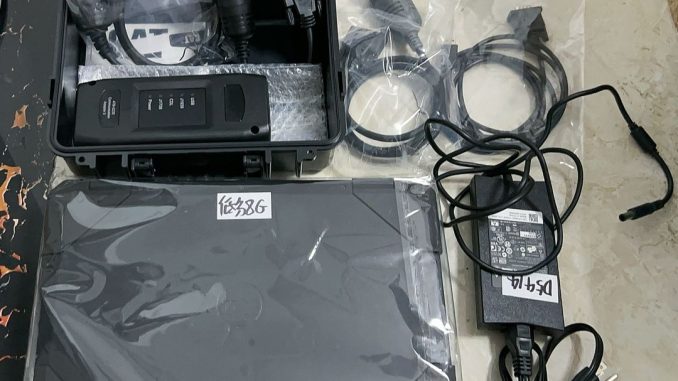
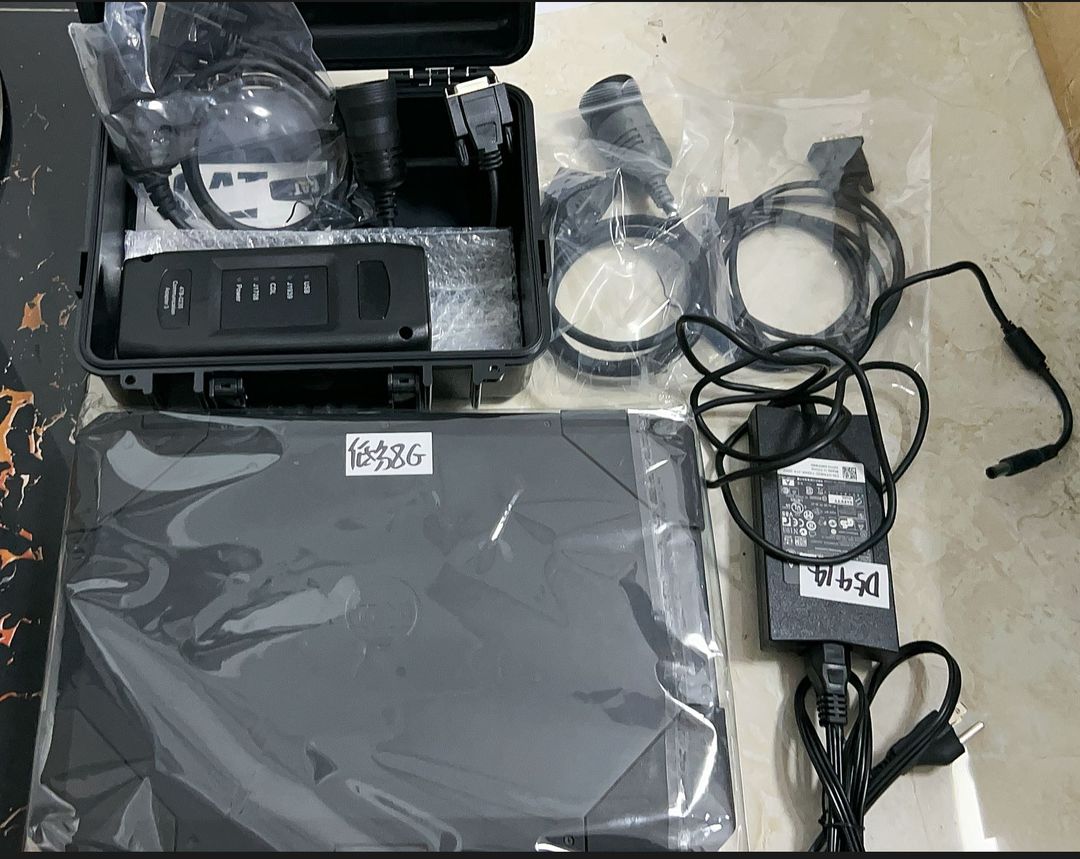
A customer recently received a CAT ET Truck Diagnostic Tool with a Dell Latitude 5414 laptop. When the technician powered on the laptop, Windows would not start, and the following messages appeared:
PXE-E61
PXE-M0F
A DISK READ ERROR OCCURRED
PRESS CTRL+ALT+DEL TO RESTART
Pressing Ctrl+Alt+Del only restarted the computer and returned it to the same error screen.
In this case, the problem was not the CAT ET diagnostic adapter or CAT ET software. The laptop couldn’t boot correctly from its SSD.
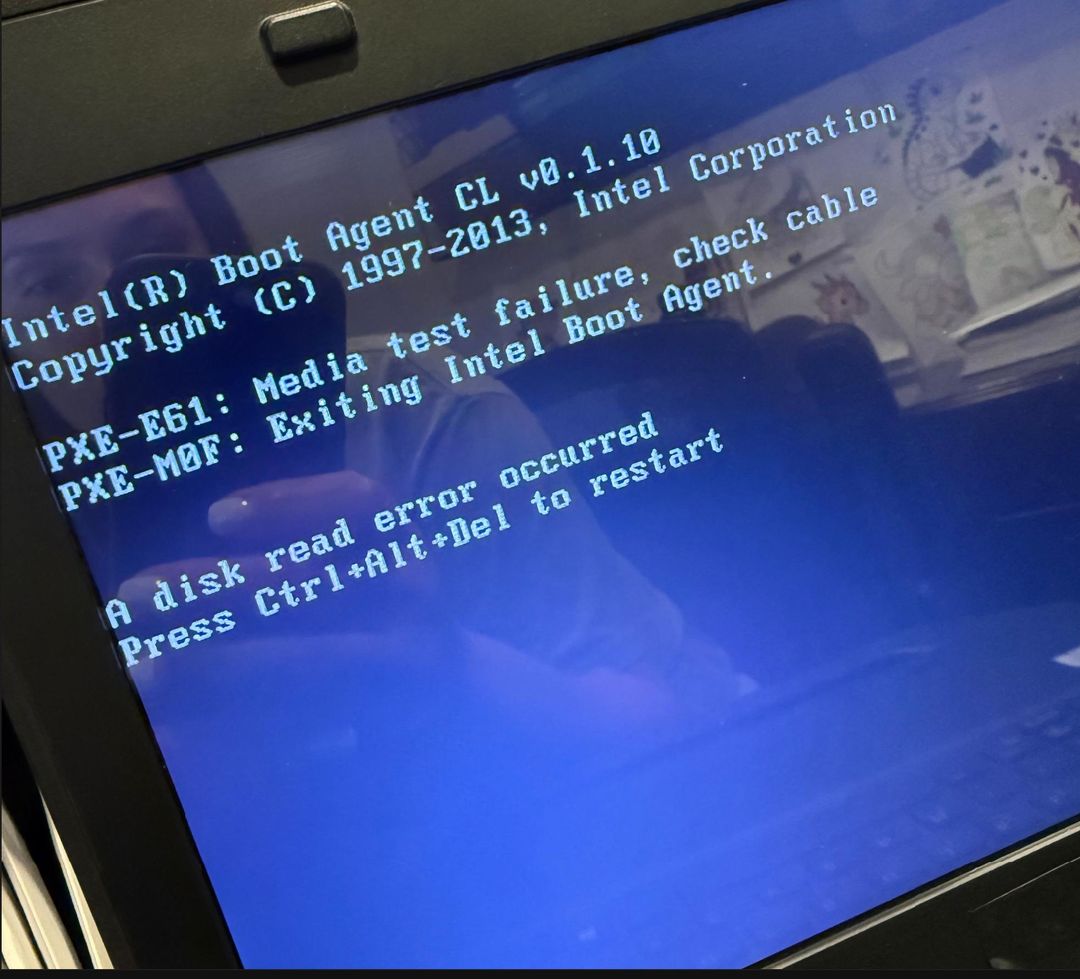
What Do PXE-E61 and PXE-M0F Mean?
These messages commonly appear when the laptop cannot boot from its internal drive and instead attempts to use PXE network boot.
Possible causes include:
- SSD not seated correctly
- SSD connection/contact problem
- SSD not detected by BIOS
- Incorrect boot order
- Corrupted Windows boot files
- Failing SSD
For this customer, the SSD connection was the cause.
Fix: Reseat the SSD
Before working inside the laptop, shut it down completely and disconnect the AC adapter.
Then:
- Open the SSD access area according to the Dell Latitude 5414 service procedure.
- Carefully remove the SSD.
- Inspect the SSD connector and contacts for dirt, oxidation, or poor contact.
- If cleaning is necessary, use an appropriate electronics-contact cleaning method and avoid scratching the contacts.
- Reinstall the SSD firmly.
- Reassemble the laptop and power it on.
After reseating the SSD correctly, the customer’s Dell 5414 booted normally into Windows.
The customer confirmed:
“Yes, that worked. We are on the main screen of the laptop now.”
If the Error Still Appears
If reseating the SSD does not solve the problem, enter the BIOS and check whether the internal SSD is detected.
SSD is detected
Check the boot order and make sure the internal Windows drive is the primary boot device.
If Windows still shows a disk-read error, the boot files or the SSD itself may need further diagnosis.
SSD is not detected
Check the SSD installation again. If the connection is secure but the drive still does not appear in BIOS, the SSD may have failed.
Do not reinstall CAT ET software immediately. PXE-E61 and disk-read errors occur before CAT ET starts, so the storage and Windows boot system should be diagnosed first.
After Windows Starts
Once the laptop reaches the Windows desktop:
- Allow Windows to finish loading.
- Confirm CAT ET software opens normally.
- Connect the CAT ET communication adapter to the laptop.
- Connect the correct diagnostic cable to the machine or engine.
- Verify that CAT ET detects the communication adapter.
- Connect to the ECM and confirm communication before performing diagnostic work.
If the laptop repeatedly loses the SSD or the same boot error returns, stop using it until you check the drive and connector.
Need a Complete CAT ET Diagnostic Setup?
For technicians who prefer a CAT diagnostic package supplied with a rugged laptop, OBDII.SHOP offers the CAT Caterpillar ET 3 Diagnostic Adapter III with Dell Latitude 5414 Laptop.
The current package combines the CAT ET communication interface, diagnostic cables, Dell 5414 laptop, and CAT ET software options in one workshop-ready configuration.
View product:
https://www.obdii.shop/goods-620-CAT-Caterpillar-ET-3-Diagnostic-Adapter-III-Truck-Diagnostic-Tool-DELL-5414-Laptop.html
https://www.obdii.shop/goods-620-CAT-Caterpillar-ET-3-Diagnostic-Adapter-III-Truck-Diagnostic-Tool-DELL-5414-Laptop.html
Before ordering, confirm the machine/engine, connector type, and required diagnostic functions so you can select the correct CAT ET configuration.
Conclusion
When a CAT ET Dell 5414 laptop displays PXE-E61, PXE-M0F, or “A disk read error occurred,” start by checking the laptop’s SSD and boot system rather than the CAT ET adapter.
In this real customer case, simply removing and securely reinstalling the SSD restored normal operation. If reseating does not work, check BIOS drive detection, boot order, and SSD health before reinstalling diagnostic software.
Leave a Reply