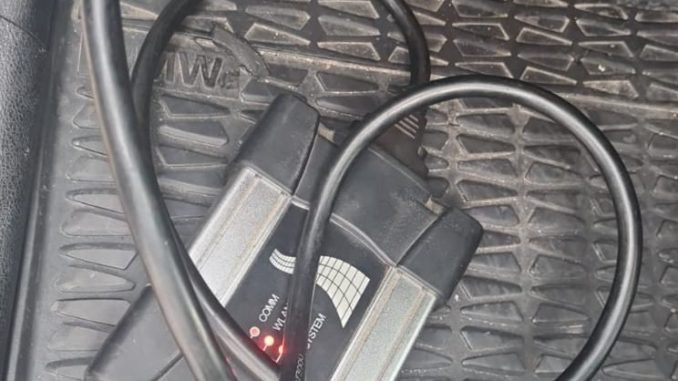
A customer purchased B.MW ICOM Engineers Software on SSD from OBDII.SHOP. After receiving the package, the software first requested activation. After activation was completed, another communication problem appeared.
Here is how the issue was diagnosed and resolved.
Problem 1: B.MW ICOM Software Requests Registration or Activation
After installing the SSD and starting the B.MW diagnostic environment, the customer encountered a registration/activation screen.
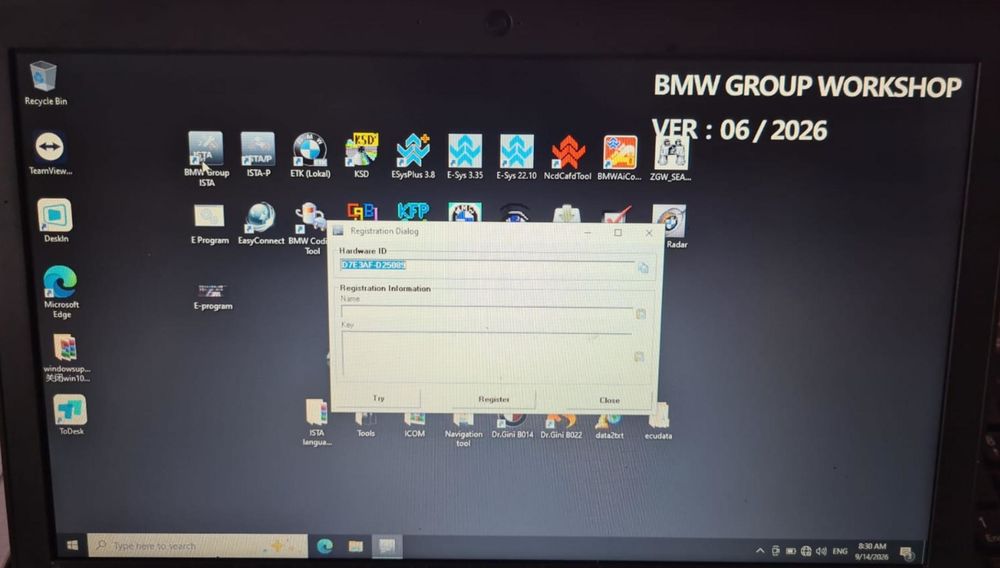
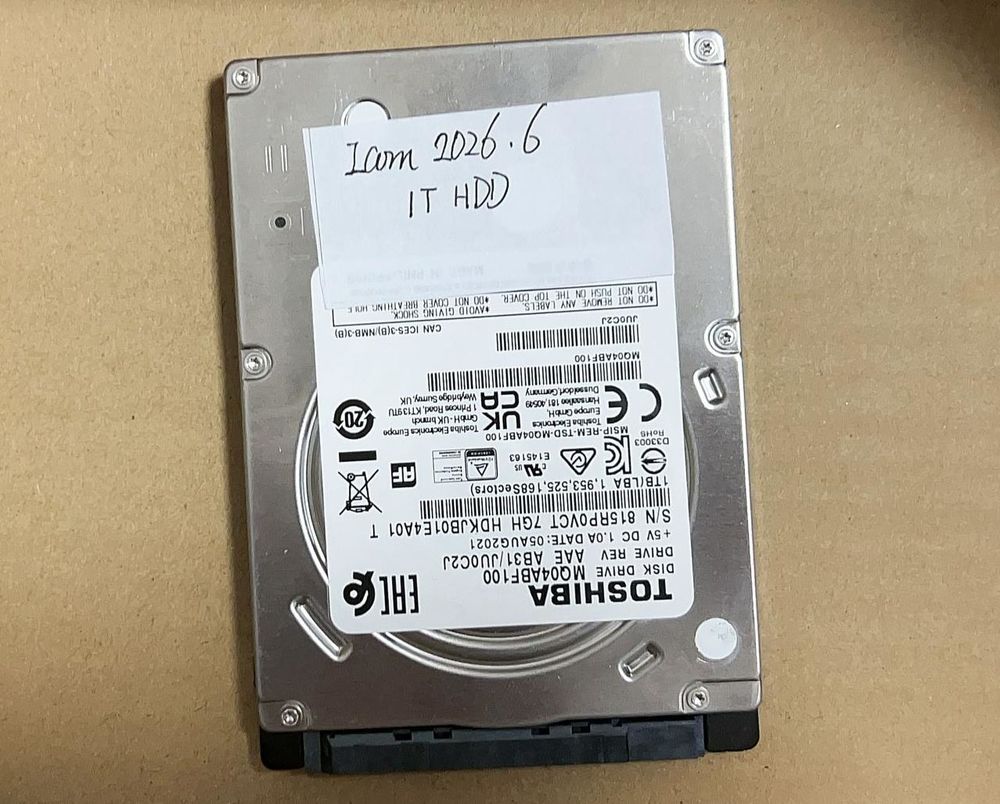
For this software package, activation may be required when it is first received and configured.
The customer contacted OBDII.SHOP support, and the software environment was activated remotely.
After activation, the software could start, but another problem appeared when attempting to use the ICOM diagnostic interface.
Problem 2: ICOM Cannot Work Correctly With the Software
The customer then encountered the following ICOM-related errors:
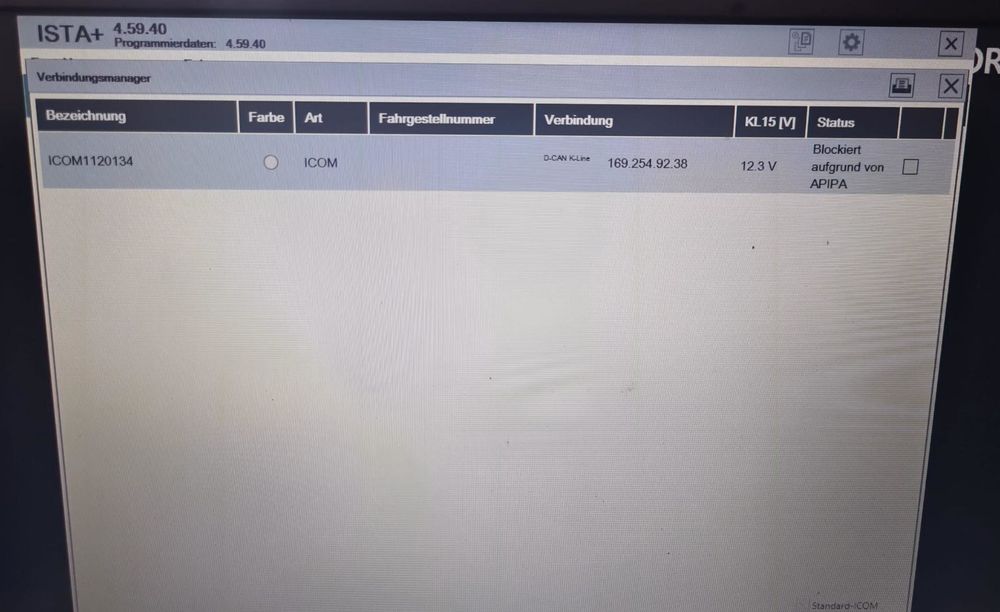
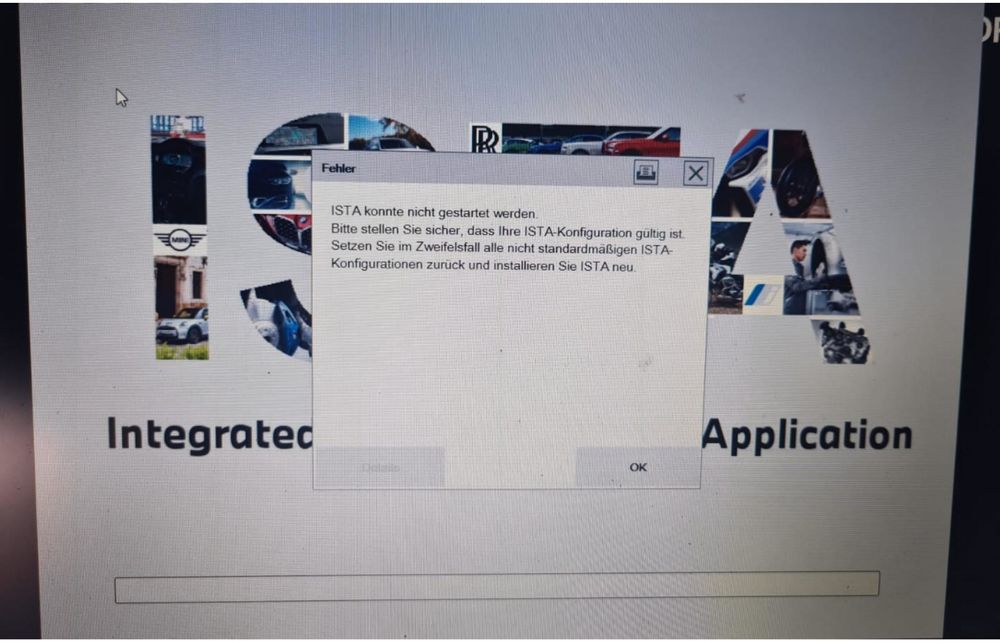
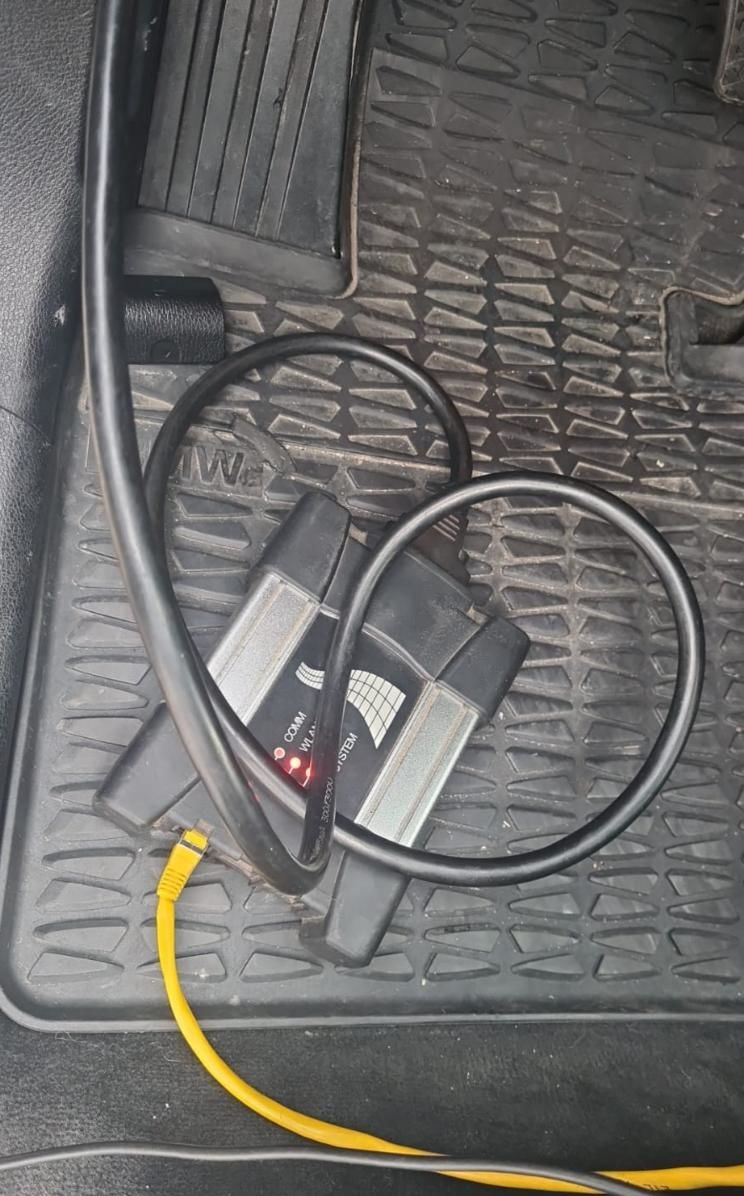
After checking the setup, the technician determined that the ICOM interface required an update to work correctly with the installed B.MW diagnostic software environment.
This type of problem can occur when the ICOM firmware level is older than the version expected by the installed ISTA/engineering software.
Typical symptoms can include:
- ICOM detected but unable to communicate correctly
- Firmware-related status or warning
- Interface unavailable inside ISTA
- Vehicle identification failing
- Communication stopping after the software is updated
Solution: Update the ICOM Interface
OBDII.SHOP technical support updated the customer’s ICOM interface to a compatible firmware level.
After the update, the interface communicated normally with the software.
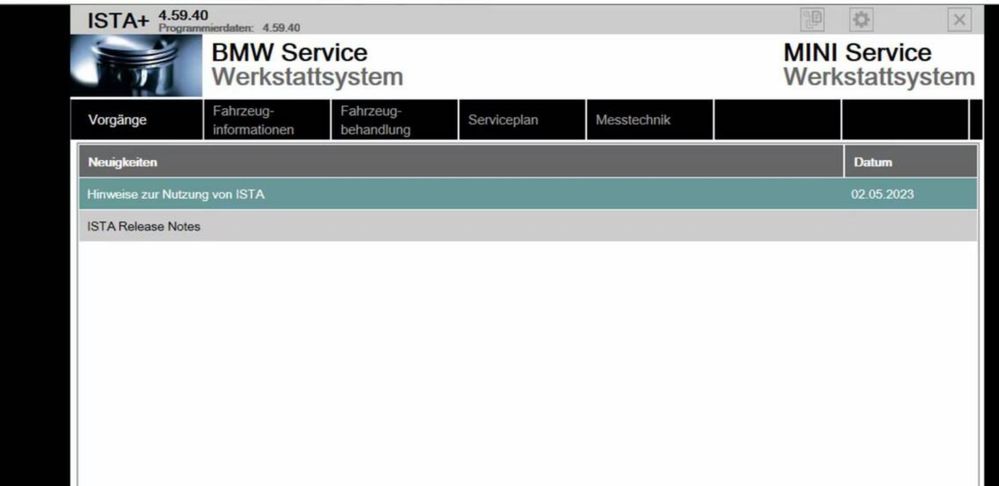
The customer confirmed:
“Yes, it’s working now. Best after-service, thanks.”
What to Check If Your B.MW ICOM Has the Same Problem
If BMW ICOM software opens normally but the interface cannot connect, check these items before reinstalling the entire software package:
- Confirm the ICOM is powered correctly.
- Make sure the Ethernet connection between the laptop and ICOM is stable.
- Check whether the ICOM appears in ISTA or ITool Radar.
- Check for a firmware or compatibility warning.
- Confirm that the ICOM firmware matches the installed software environment.
- Restart the ICOM and laptop after an update and test communication again.
Do not install random ICOM firmware files simply because they have a higher version number. The firmware should be compatible with the specific ICOM model and software environment.
For programming or coding work, also use a stable vehicle power supply and avoid disconnecting the ICOM, Ethernet cable, or laptop while a programming operation is running.
B.MW ICOM Engineers Software for ICOM Next / A2 / A3
If you need a prepared B.MW diagnostic and engineering software environment for an existing compatible ICOM interface, see:
B.MW ICOM Engineers Software for ICOM Next / ICOM A2 / ICOM A3
https://www.obdii.shop/goods-10-BMW-ICOM-Engineers-Software-BMW-ICOM-Next-A2-A3-Diagnosis.html
The package is available as HDD/SSD or remote-installation options depending on the selected configuration.
Before ordering, confirm your ICOM model, laptop specifications, required B.MW chassis coverage, and intended diagnostic/programming functions.
Conclusion
When ICOM Engineers Software requests activation and then produces an ICOM communication error, these may be two separate problems.
In this customer case:
Software activation → completed successfully
ICOM communication problem → outdated/incompatible interface firmware
ICOM update → communication restored
Therefore, if the software itself opens normally but the ICOM cannot communicate, check the interface firmware and network connection before reinstalling the entire B.MW software system.
Leave a Reply