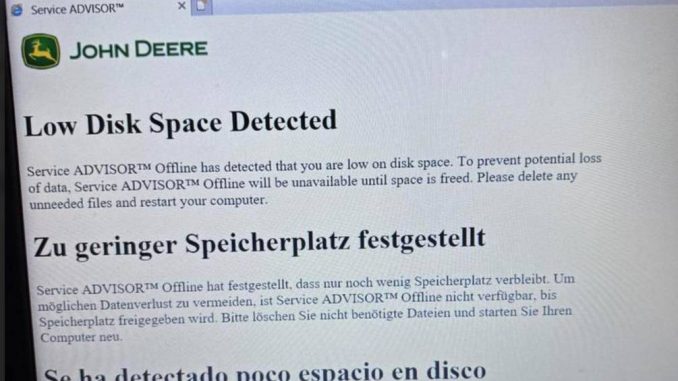
A customer who purchased the John Deere Service Advisor EDL V3 Electronic Data Link Truck Diagnostic Kit with Lenovo T420 Laptop from OBDII.SHOP reported that the Service Advisor software suddenly stopped working correctly.
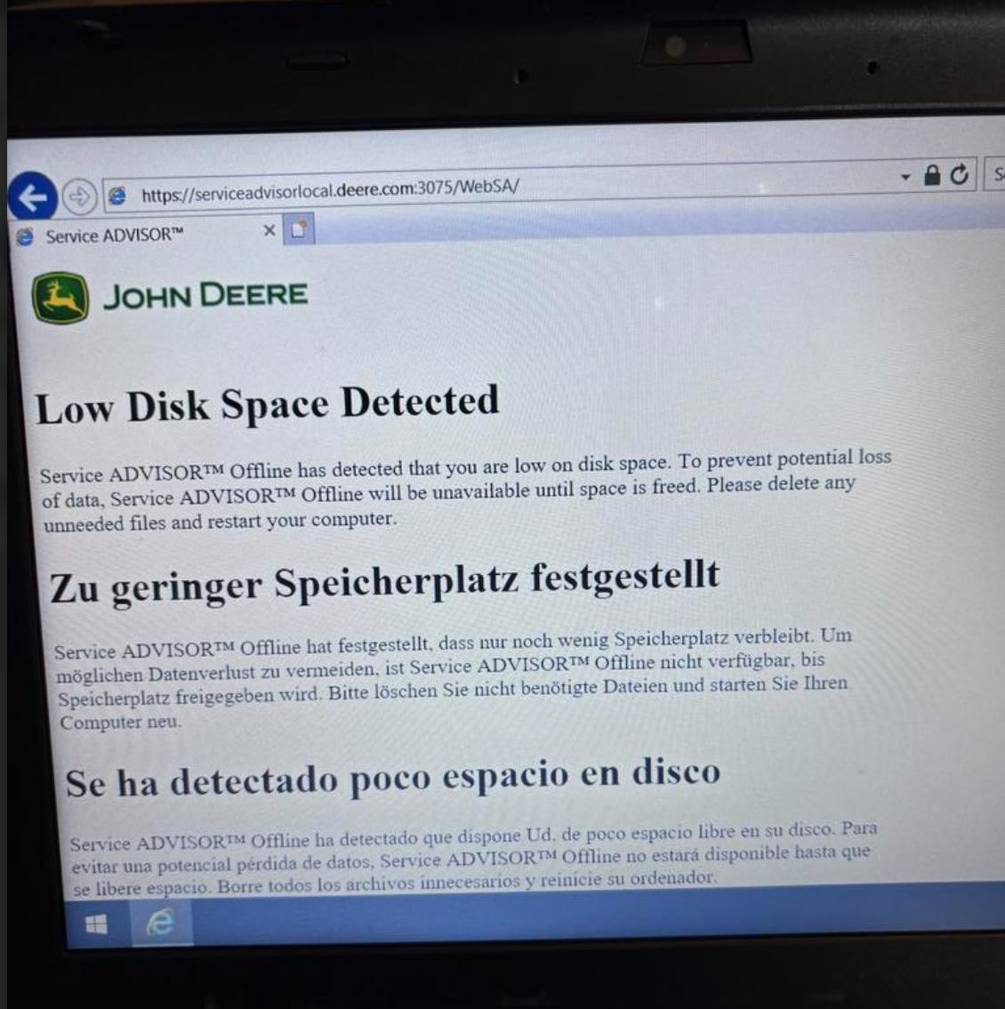
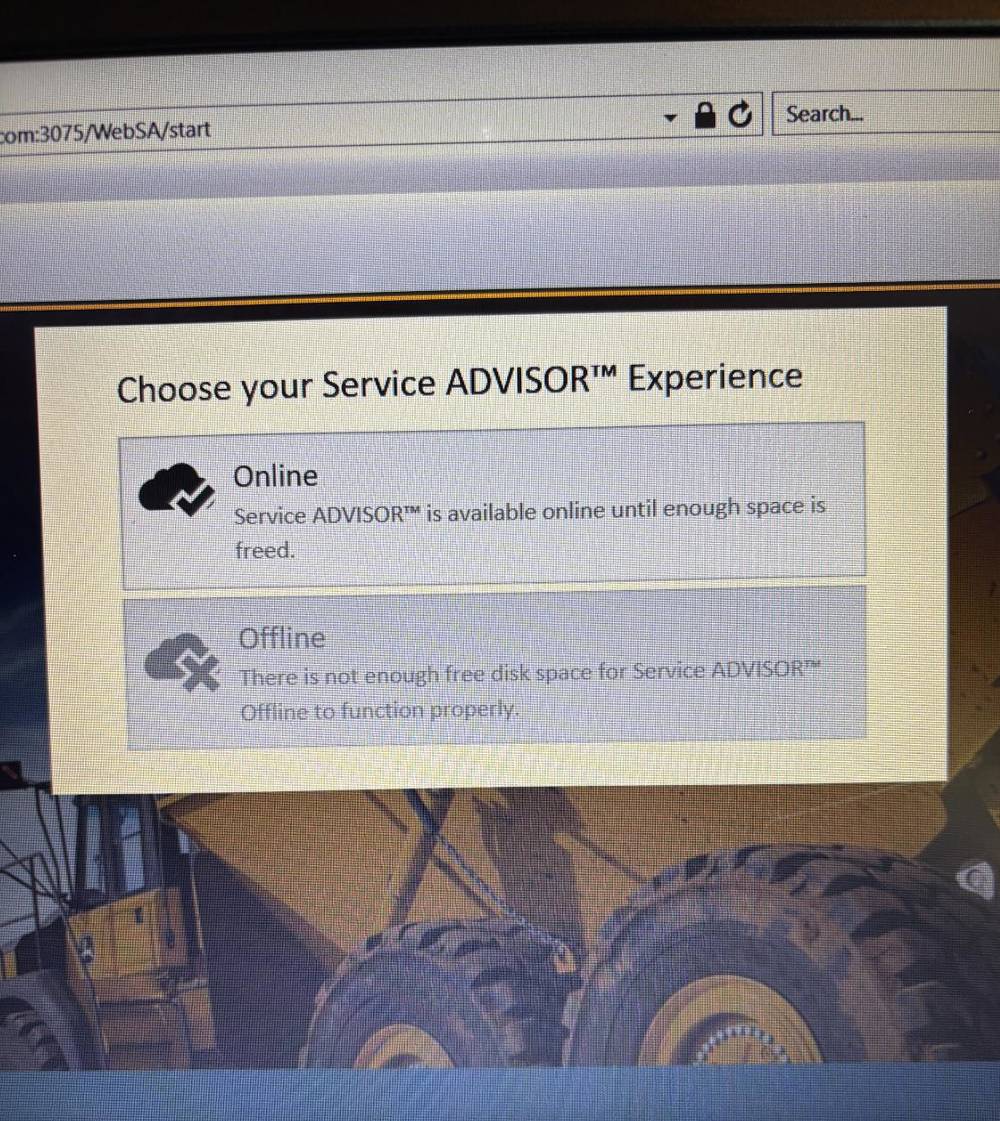
After reviewing the screenshots provided by the customer, our technical support team determined that the problem was caused by insufficient free space on the laptop’s hard drive.
Customer Report
The customer explained:
I purchased the John Deere Service Advisor EDL V3 diagnostic kit with a Lenovo T420 laptop from OBDII.SHOP on January 24, 2025. The software had been working normally, but today I encountered an issue. I am operating Service Advisor through Internet Explorer and have provided the requested screenshots.
Cause of the Problem
Based on the screenshots, the laptop’s hard drive did not have enough available storage space for John Deere Service Advisor to operate normally.
Service Advisor requires sufficient free disk space to load program files, temporary data, diagnostic information and equipment databases. When the drive becomes full, the software may respond slowly, fail to open pages or stop functioning correctly.
How to Fix John Deere Service Advisor Low Disk Space
Follow these steps to free storage space on the diagnostic laptop:
- Open File Explorer and check the available space on the system drive, usually the C: drive.
- Review the Downloads, Documents, Desktop and Recycle Bin folders.
- Delete unnecessary videos, installation packages, duplicate files and other large files that are no longer required.
- Empty the Recycle Bin after deleting the files.
- Restart the laptop.
- Open John Deere Service Advisor again and confirm that the software works normally.
Do not delete John Deere Service Advisor program folders, equipment databases, activation files or diagnostic drivers unless instructed by technical support.
Customer Confirmation
After checking the laptop again, the customer found a large file that had not been completely removed.
The customer deleted the file and confirmed:
I found a file that I thought I had already deleted. After removing it, John Deere Service Advisor started working again. Thank you.
This confirmed that the issue was caused by insufficient hard-drive space rather than a problem with the EDL V3 communication adapter or Service Advisor installation.
How to Prevent the Issue
To help prevent another low-disk-space warning:
- Keep adequate free space on the system drive.
- Regularly empty the Recycle Bin.
- Remove unnecessary downloads and temporary files.
- Avoid storing large personal files on the diagnostic laptop.
- Do not install unrelated programs that consume significant storage.
- Contact technical support before deleting Service Advisor system files.
Frequently Asked Questions
Why does John Deere Service Advisor need free disk space?
The software uses disk space for temporary files, machine information, diagnostic reports and database operations. Insufficient storage can prevent these functions from loading correctly.
Does this error mean the John Deere EDL V3 is damaged?
Not necessarily. In this case, the EDL V3 hardware was working normally. The issue was caused by limited storage space on the laptop.
Can I delete files from the Service Advisor installation folder?
You should not manually delete files from the Service Advisor installation directory unless an OBDII.SHOP technician specifically instructs you to do so. Removing essential files may cause the software to stop working.
What should I do if freeing disk space does not solve the problem?
Restart the laptop and test the software again. If the error remains, take clear screenshots of the warning message and contact OBDII.SHOP technical support for further diagnosis.
Need Technical Support?
Customers who purchase John Deere diagnostic products from OBDII.SHOP can contact our support team for assistance with software operation, connection problems and common diagnostic laptop issues.
Email: sales@obdii.shop
When contacting us, please include your order information, diagnostic tool model, laptop model and clear screenshots of the error message. This will help our technicians identify the problem more efficiently.
Leave a Reply