- BMW ISTA
- Mercedes-Benz XENTRY Diagnosis
- Volkswagen Group ODIS
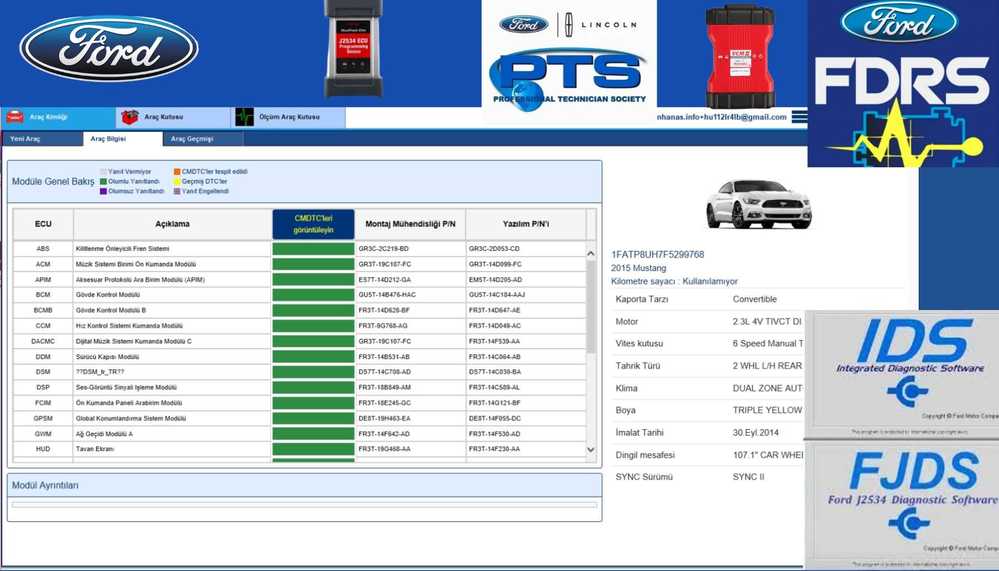
- Ford IDS and FDRS
- Caterpillar Electronic Technician, or Cat ET
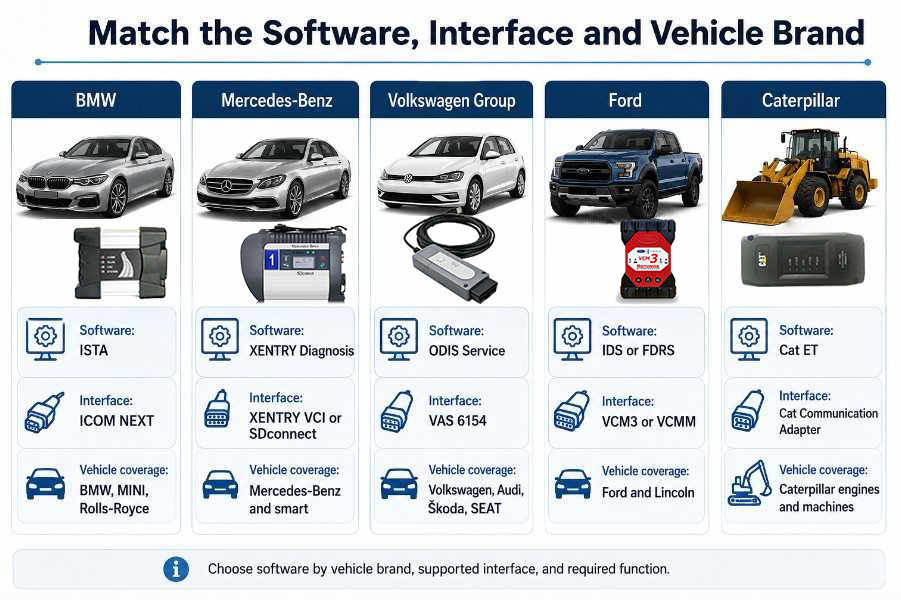
Quick Answer: Which Diagnostic Software Do You Need?
| Vehicle or equipment | Recommended software | Common interface | Best suited for |
| BMW, MINI and Rolls-Royce | BMW ISTA | ICOM NEXT or approved J2534 device | Diagnosis, test plans, coding and programming |
| Mercedes-Benz and smart | XENTRY Diagnosis | XENTRY VCI, SDconnect or supported Pass-Thru device | Guided diagnosis, control-unit testing and commissioning |
| Volkswagen, Audi, Škoda and SEAT | ODIS Service | VAS 6154-series interface | Guided fault finding, adaptations and VAG diagnostics |
| Ford and Lincoln | IDS and FDRS | VCM3, VCMM or supported J2534 interface | Ford-specific diagnostics and module programming |
| Caterpillar engines and machines | Cat ET | Cat Communication Adapter | ECM diagnostics, configuration, calibration and testing |
What Is Automotive Diagnostic Software?
- Read active, stored, and pending diagnostic trouble codes.
- Clear fault codes after repairs
- View live sensor and system data.
- Run actuator and component tests.
- Reset service indicators
- Calibrate or initialize replacement components
- Perform guided troubleshooting
- Record diagnostic sessions
- Change permitted control-unit parameters.
- Code or program replacement modules
- Access repair procedures and wiring information
Important Compatibility Principle
- Compatible diagnostic software
- Correct vehicle communication interface
- Suitable vehicle cable or adapter
- Supported Windows operating system
- Valid software license or activation
- Internet access for online functions
- Stable vehicle and laptop power
1. BMW ISTA Diagnostic Software
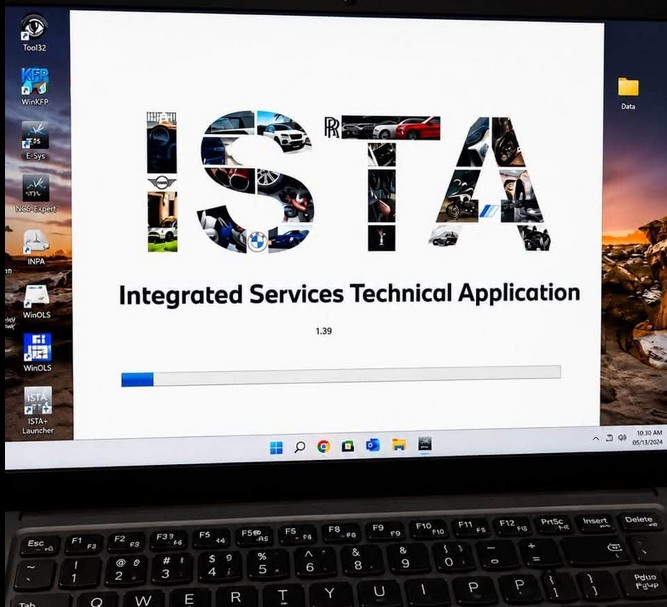
Best for BMW, MINI and Rolls-Royce Vehicles
BMW’s technical-information portal listed ISTA 4.59.40 diagnosis and programming updates as available on 24 June 2026. Because versions change regularly, buyers should verify the installed release and programming data before ordering.
Compatible Hardware
- BMW ICOM NEXT
- BMW ICOM A2 with the necessary adapters
- Approved J2534 interfaces for supported procedures
- Ethernet connection for compatible BMW vehicles
Main Functions
- Battery registration
- Steering-angle calibration
- Brake bleeding
- Service reset
- Transfer-case calibration
- Component initialization
- DPF-related service procedures
Advantages
- Strong BMW-specific diagnostic coverage
- Guided troubleshooting and structured test plans
- Support for diagnosis, service work and programming
- Better control-unit identification than basic universal scanners
- Suitable for independent BMW specialists and professional workshops
Limitations
- Requires a properly configured Windows laptop
- Programming files require substantial storage.
- Incorrect programming procedures may damage control units.
- Newer protected functions may require online authorization.
- The interface can be difficult for first-time users.
Recommended For
2. Mercedes-Benz XENTRY Diagnosis and DAS
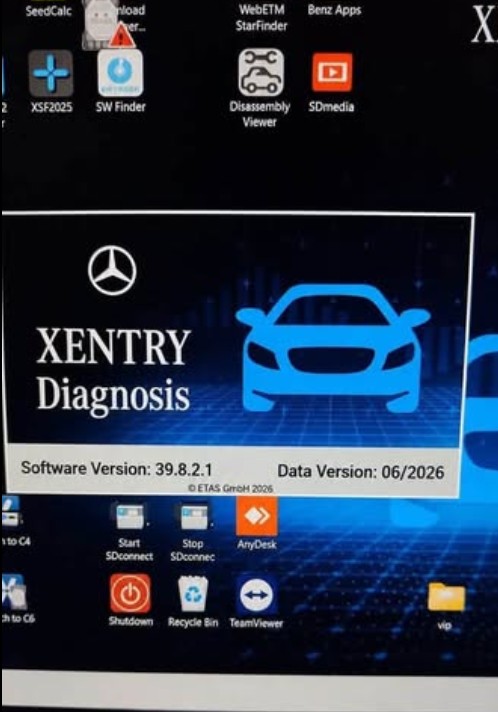
Best for Mercedes-Benz, smart and Maybach Vehicles
Compatible Hardware
- XENTRY Diagnosis VCI
- XENTRY Diagnosis Kit
- SDconnect C4 or C5 for compatible legacy configurations
- Supported J2534 Pass-Thru interfaces
- DoIP-capable interfaces for newer Ethernet-based vehicles
Main Functions
- Control-unit initialization
- Coding
- Parameterization
- Flash programming
- Replacement-module commissioning
- Adaptation procedures
- Service-interval reset
- Battery registration
- Brake bleeding
- Transmission adaptation
- Sensor calibration
- Diesel service functions
- Component teach-in
Advantages
- Detailed Mercedes-Benz-specific fault information
- Guided tests for complex electrical problems
- Broad module and system coverage
- Support for commissioning and programming
- Regular diagnostic and control-unit software updates
Limitations
- Different vehicle generations may require different communication methods.
- Some online functions require verified credentials and permissions.
- Pass-Thru configurations may have functional or speed limitations.
- Older vehicles may require legacy cables or software components.
- Installation and activation can be complex.
Recommended For
3. ODIS Service for Volkswagen Group Vehicles
Best for Volkswagen, Audi, Škoda, SEAT and Other Supported VAG Brands
Compatible Hardware
- VAS 6154
- VAS 6154A
- VAS 6154B
- Approved Pass-Thru interfaces for supported operations
Main Functions
- Steering-angle calibration
- Throttle adaptation
- Brake service procedures
- Transmission basic settings
- Sensor calibration
- Replacement-component initialization
- Software Version Management
- Control-unit flashing
- Component protection procedures
- Immobilizer-related operations
- Security-protected coding
- Replacement-module adaptation
An installed copy of ODIS does not automatically include access to protected online functions.
Advantages
- Strong Volkswagen Group vehicle integration
- Guided diagnostic test plans
- Access to manufacturer-specific adaptations and basic settings
- Suitable for module replacement and advanced fault finding
- USB and wireless communication options with supported VAS interfaces
Limitations
- Protected functions require proper online authorization.
- Coverage depends on the installed brand data.
- Engineering functions require additional knowledge and access.
- Incorrect flashing or coding can turn off a control unit.
- Installation and interface configuration may be demanding.
Recommended For
4. Ford IDS and FDRS Diagnostic Software
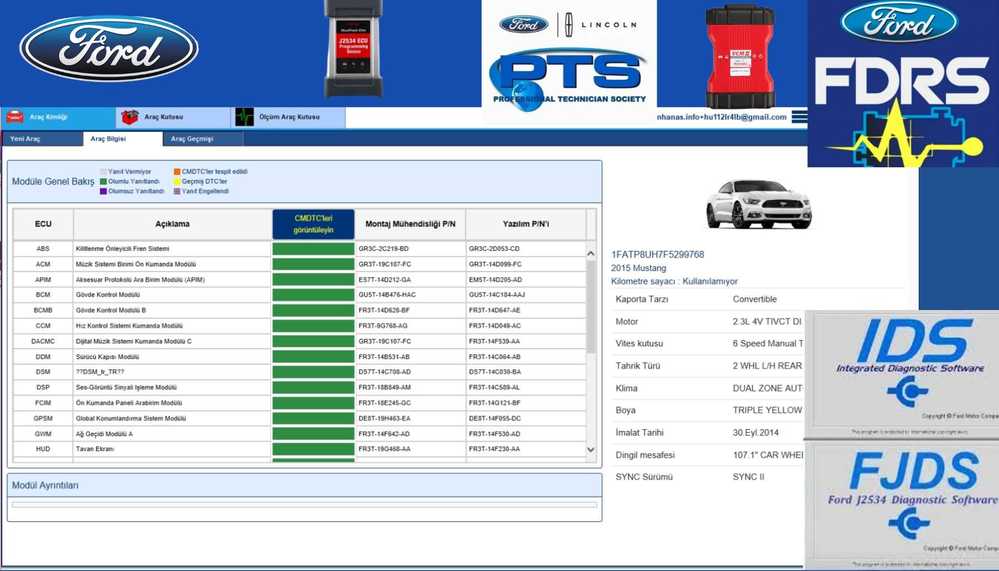
Best for Ford and Lincoln Vehicles
- IDS provides dealership-level coverage for 1996 through selected 2018 Ford, Lincoln and Mercury vehicles.
- FDRS supports selected 2018-and-newer Ford and Lincoln vehicles.
- FJDS provides J2534-based module programming for older vehicles and diagnostic coverage for supported newer vehicles.
Important Mazda Note
Compatible Hardware
- Ford VCM3
- Ford VCMM
- Approved J2534 interfaces
- Legacy VCM II hardware in supported configurations
Main Functions
- PCM or ECM
- TCM
- ABS
- Restraints control module
- Body control module
- Instrument cluster
- Four-wheel-drive module
- Anti-theft and security systems
- Injector balance tests
- Relative compression tests
- ABS service bleed
- Output-state controls
- Network tests
- EVAP system tests
- Power-balance testing
Advantages
- Manufacturer-specific Ford diagnostics
- Strong live-data and functional-test capabilities
- Access to supported calibration files
- Suitable for module programming
- FDRS provides a more modern, cloud-connected diagnostic environment
Limitations
- IDS and FDRS cover different vehicle ranges
- A valid license is required.
- Programming depends on a reliable internet connection.
- Security functions may require additional credentials.
- It is not a general multi-brand diagnostic solution.
Recommended For
5. Caterpillar Electronic Technician Software
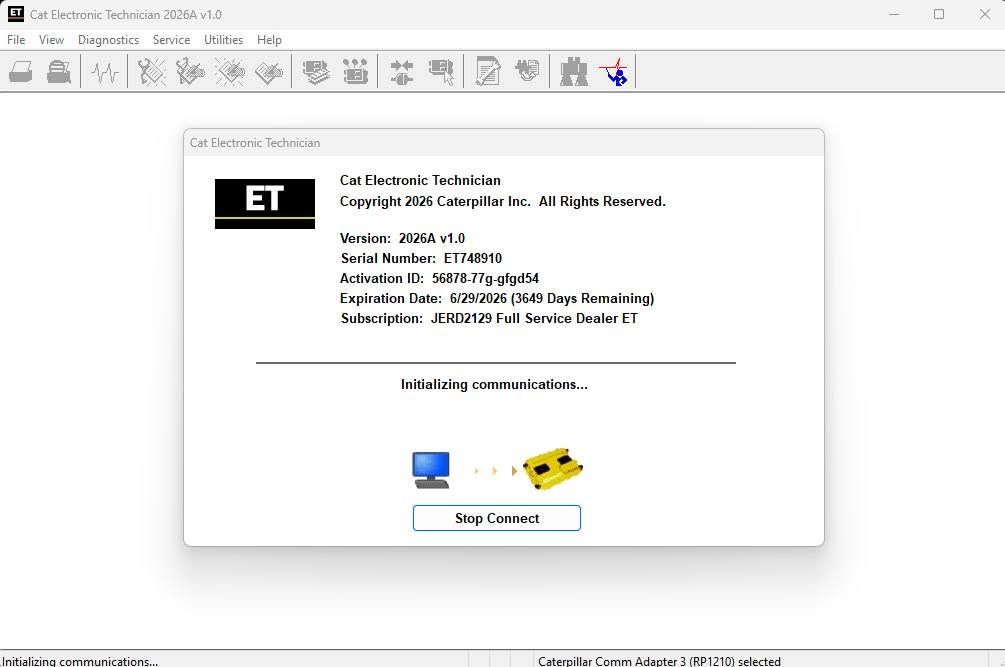
Best for Caterpillar Engines, Machines and Supported Equipment
Compatible Hardware
- Cat Communication Adapter 3
- Cat Communication Adapter 4
- Correct machine or engine diagnostic cable
- Additional adapters for older connectors or specific equipment
Main Functions
- Engine speed
- Temperatures
- Pressures
- Switch status
- Fuel-system information
- Aftertreatment data
- Machine-system parameters
Advantages
- Detailed access to supported Caterpillar ECMs
- Live-data recording and analysis
- Configuration and calibration functions
- Support for engines, machines and selected industrial applications
- Valuable for troubleshooting intermittent faults
Limitations
- Limited to supported Caterpillar systems
- Some parameter changes require factory passwords.
- Flash files and service information may require authorized access.
- Different machines may use different cables.
- Incorrect configuration changes can affect machine operation.
Recommended For
How to Choose the Correct Laptop Diagnostic Software
Choose BMW ISTA When:
- Most of your work involves BMW, MINI or Rolls-Royce.
- You need guided test plans.
- You perform battery registration, calibration, coding or programming.
- You have a compatible ICOM or approved interface.
Choose XENTRY When:
- You service Mercedes-Benz or smart vehicles.
- You need guided fault finding.
- You work on both older and newer Mercedes-Benz platforms.
- You understand the difference between VCI, SDconnect, Pass-Thru and DoIP systems.
Choose ODIS When:
- You specialize in Volkswagen Group vehicles.
- You need Guided Fault Finding.
- You perform adaptations, basic settings, or control-unit replacement.
- You have a supported VAS 6154-series interface.
Choose IDS or FDRS When:
- You work mainly on Ford and Lincoln vehicles.
- You need Ford-specific functional tests.
- You perform module programming.
- You can identify whether the vehicle requires IDS, FJDS, or FDRS.
Choose Cat ET When:
- You diagnose Caterpillar engines or machines.
- You need ECM parameters, calibrations, and diagnostic tests.
- You have the correct Cat Communication Adapter and machine cable.
- You can confirm the machine serial number and electronic-control system.
Choose Multiple unrelated brands When:
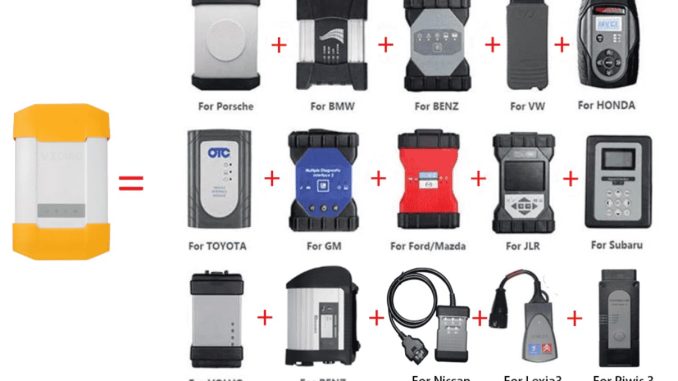
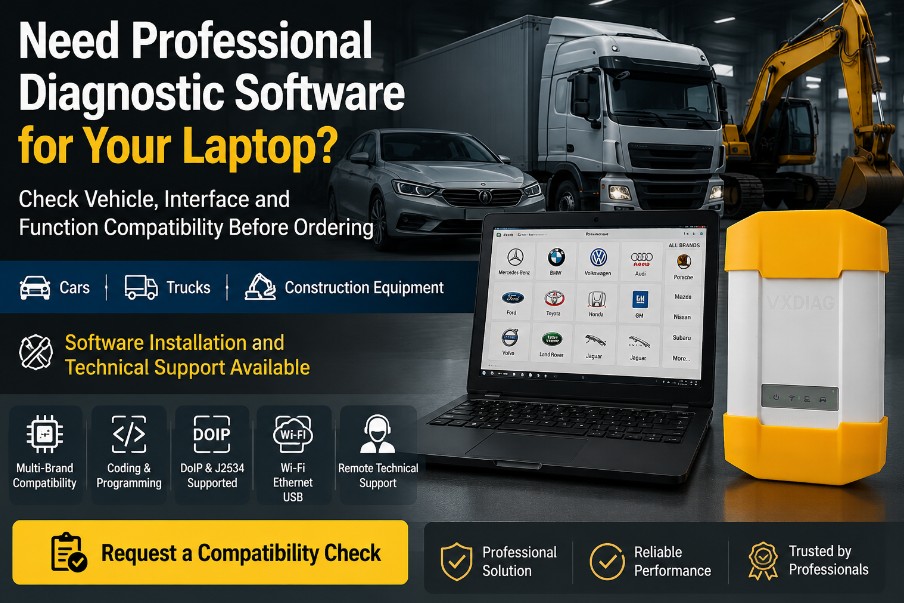
Here is a conversion section designed to fit naturally before the article’s final recommendation. The product combines a VXDIAG VCX-PLUS interface with multiple manufacturer diagnostic applications, with HDD, SSD and ready-to-use Lenovo laptop configurations available. Optional software authorization is listed for JLR Pathfinder, Nissan/PSA/Renault and Porsche PIWIS 3. (OBDII Shop)
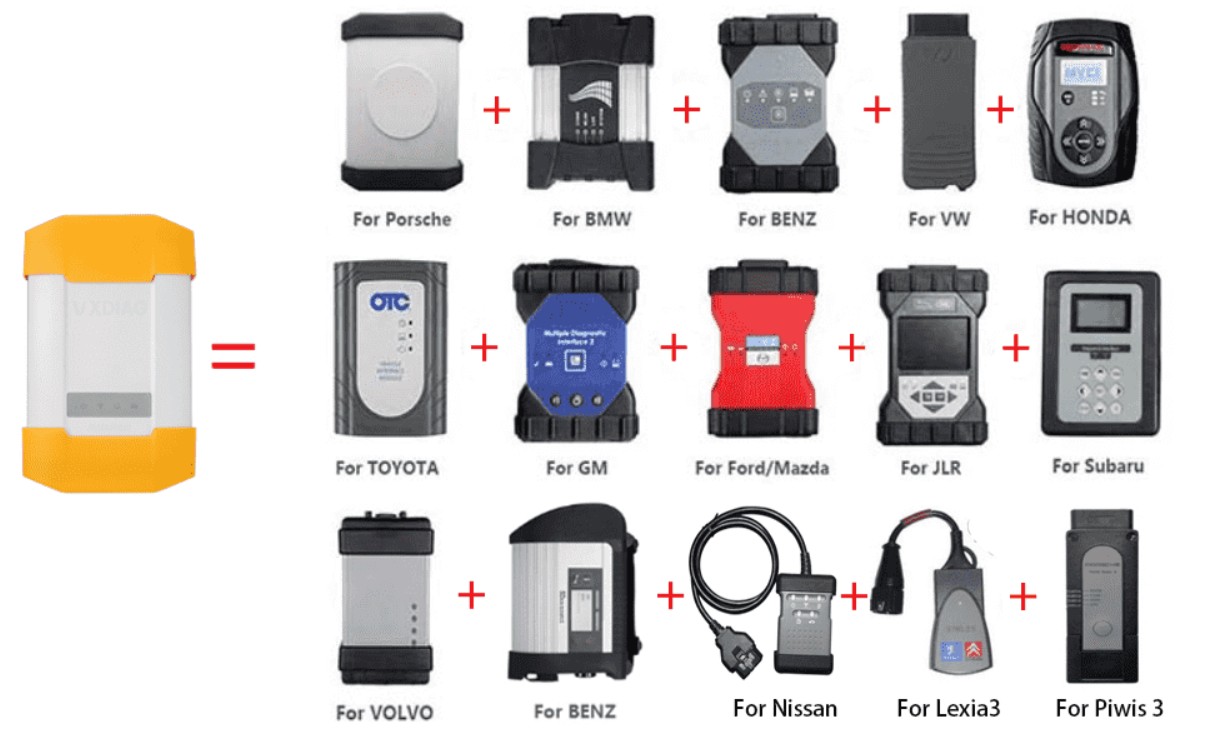
One Diagnostic Laptop Setup for Multiple Vehicle Brands
Work on several vehicle brands and want to avoid purchasing a separate diagnostic laptop and interface for each one?
The All Brands Original Diagnostic Tool Package combines a VXDIAG VCX-PLUS communication interface with manufacturer-specific diagnostic software for a wide range of passenger cars and light commercial vehicles.
Supported Diagnostic Platforms
Depending on the selected configuration and software authorization, the package can support diagnostic applications for:
- Mercedes-Benz XENTRY and DAS
- BMW ISTA
- Volkswagen Group ODIS
- Ford IDS and supported FDRS applications
- Mazda IDS
- Toyota Techstream
- Honda HDS
- GM GDS2 and Tech2Win
- Jaguar Land Rover SDD and Pathfinder
- Volvo VIDA
- Subaru SSM
- Porsche PIWIS 2 and optional PIWIS 3
- Optional Nissan CONSULT
- Optional PSA DiagBox
- Optional Renault CLIP
Main Workshop Functions
Vehicle and software coverage varies, but supported functions may include:
- Complete vehicle-system scanning
- Reading and clearing diagnostic trouble codes
- Live-data monitoring and recording
- Active and component tests
- Service resets and maintenance procedures
- ECU coding and configuration
- Module initialization and adaptation
- J2534 pass-through programming
- DoIP diagnostics for compatible newer vehicles
- Automatic VIN identification
- Manufacturer-specific diagnostic procedures
Protected programming, immobilizer, security and online functions may require a valid manufacturer account, subscription or separate authorization.
Multiple Package Options
Choose the configuration that best matches your workshop:
- Software installed on a 2 TB HDD
- Software installed on a 2 TB SSD
- Used Lenovo T450 laptop with a 2 TB HDD
- Used Lenovo T450 laptop with a 2 TB SSD
The laptop package is prepared for direct use, while HDD and SSD packages must be installed in a compatible computer.
Why Choose a Multi-Brand Diagnostic Package?
This setup is suitable for independent workshops that regularly service European, Asian and American vehicles. Instead of maintaining several separate diagnostic computers, technicians can access multiple manufacturer applications from one organized system.
The VXDIAG interface supports J2534, DoIP and multiple legacy vehicle communication protocols, with USB, Wi-Fi and LAN connection options.
Compatibility is determined by the exact vehicle, model year, communication protocol and required function. Contact the supplier before ordering to confirm whether diagnosis, coding or programming is supported for your vehicle.
Information to Provide for a Compatibility Check
Send the following details before purchasing:
- Vehicle manufacturer
- Exact model
- Model year
- VIN
- Engine or transmission type
- Required diagnostic function
- Required coding or programming procedure
- Photo of the vehicle diagnostic connector, when necessary
View the All Brands Diagnostic Tool Package and Request a Compatibility Check
The product page lists full-system diagnosis, active testing, coding, supported ECU programming, J2534 and DoIP communication, plus USB, Wi-Fi and LAN connectivity. Exact capabilities remain dependent on the selected software and vehicle.
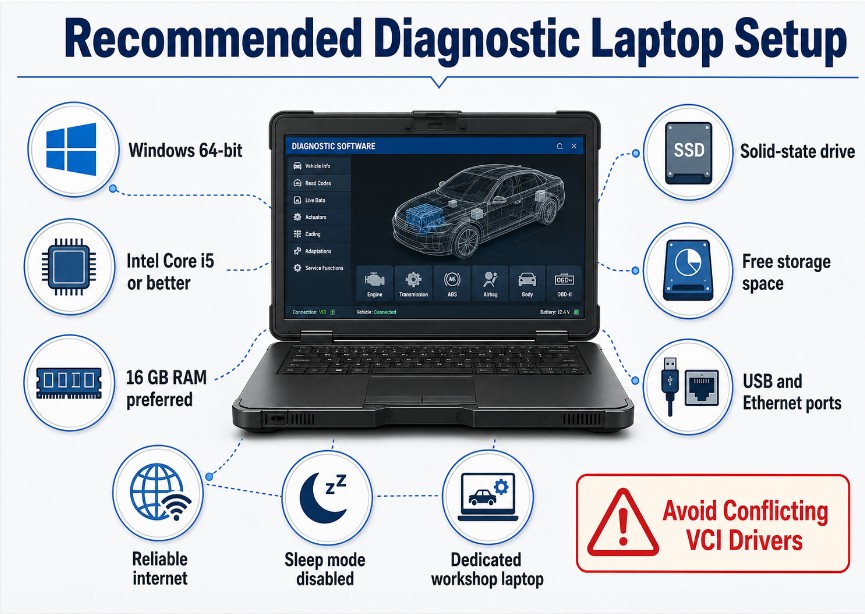
Laptop Requirements
- 64-bit Windows operating system
- Intel Core i5-class processor or better
- At least 8 GB RAM, with 16 GB preferred
- Solid-state drive
- Sufficient free storage for software and programming data
- Reliable USB and Ethernet ports
- Stable Wi-Fi or wired internet connection
- Disabled sleep and hibernation during programming
- Compatible display resolution
- Dedicated workshop use where possible
Safety Checklist Before Programming or Coding
- Connect a regulated battery maintainer.
- Confirm the vehicle voltage is stable.
- Connect the diagnostic interface directly to the laptop when recommended.
- Disable laptop sleep, hibernation, and automatic restart.
- Verify the VIN, control-unit part number and selected software file.
- Close unnecessary applications.
- Do not disconnect the interface or vehicle battery.
- Do not switch off the ignition unless instructed.
- Keep a record of original coding or configuration values.
- Follow the software’s on-screen instructions exactly.
Frequently Asked Questions
Can one diagnostic software support every vehicle brand?
Can I use diagnostic software without an interface?
Does installed software include online programming access?
Can I install several diagnostic programs on one laptop?
Is an internet connection always required?
Can a low-cost J2534 device replace the original interface?
Which software is best for a multi-brand workshop?
What information should I provide before ordering?
- Vehicle or machine brand
- Exact model
- Model year
- VIN or equipment serial number
- Engine or transmission type
- Diagnostic connector photo
- Required diagnostic or programming function
- Existing laptop specifications
- Existing communication interface
Leave a Reply