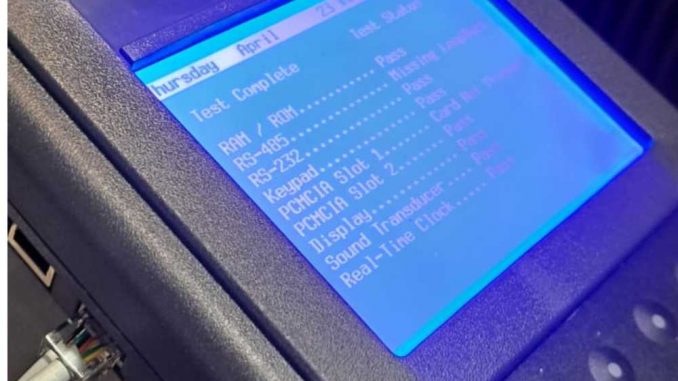
The GM Tech2 is a legendary standalone diagnostic tool, but its true power is unlocked when connected to a PC for TIS2000 security access and ECU programming.
A common frustration for many technicians is when the Tech2 works perfectly on the vehicle but refuses to communicate with the computer. If you are seeing communication errors or failed self-tests, the fix might be simpler than you think.
The Symptoms: When “Hardware Failure” is a False Alarm
A recent user report highlighted a situation where the Tech2 unit appeared to have internal damage. The symptoms included:
-
Standalone Mode: Works perfectly on the car.
-
PC Connection: TIS2000 displays “Connection Failed.”
-
Internal Self-Tests: VCI Self-Test, Dual UART, and Level Shifter all return a FAIL status.
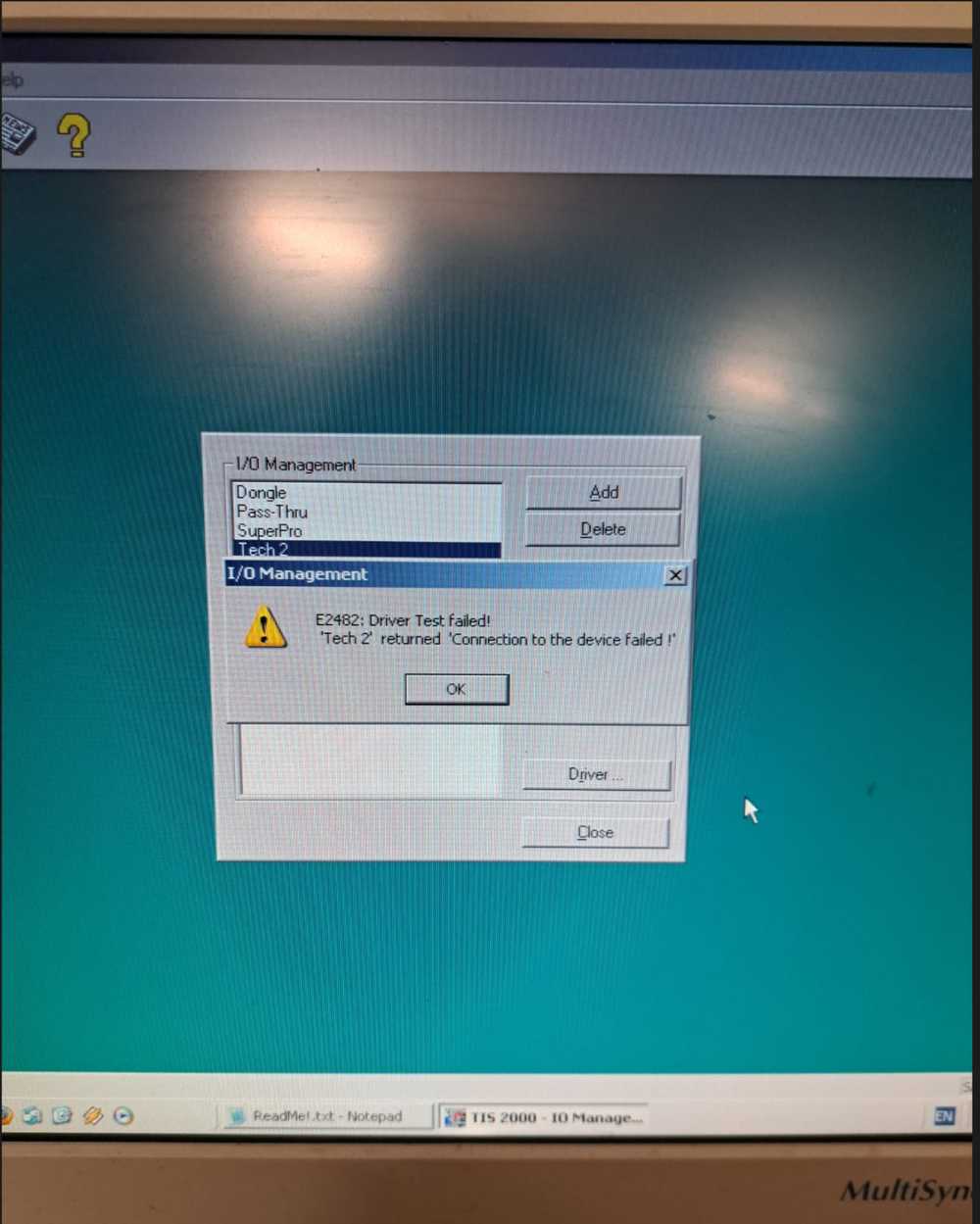
At first glance, these “FAIL” results suggest the VCI board (the heart of the Tech2) is faulty. However, because these tests involve a loopback through the RS232 cable, a loose COM port connection will cause the device to report a hardware failure even when the hardware is healthy.
The Solution: Validating the COM Port
In this specific case, the “faulty” hardware was actually a bad COM port connection.
RS232 serial communication is sensitive. If the pins are slightly bent, the cable is poor quality, or the USB-to-Serial adapter is unstable, the Tech2 cannot complete its circuit. Once the COM port connection was secured and the correct port was selected in the TIS2000 settings, the “hardware failures” disappeared instantly.
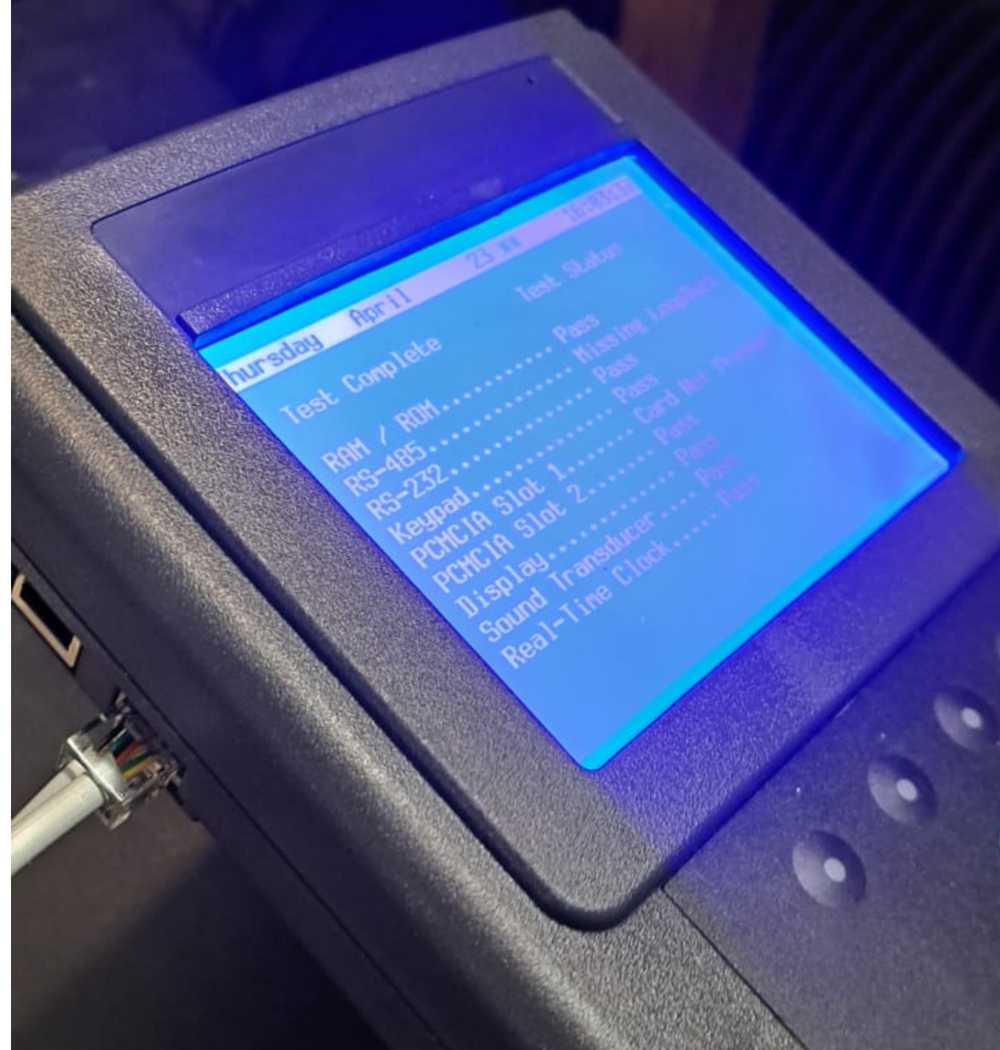
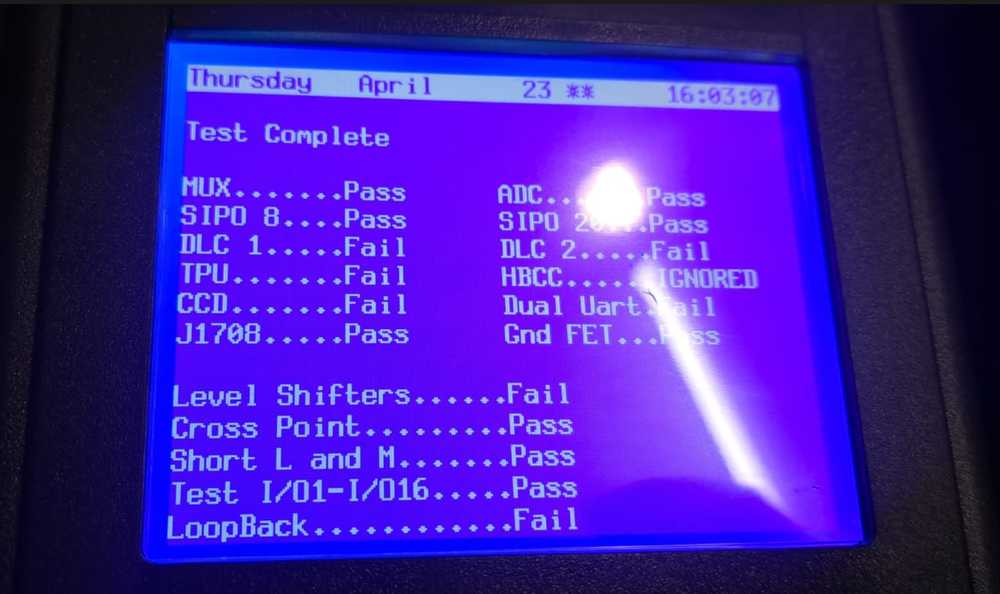
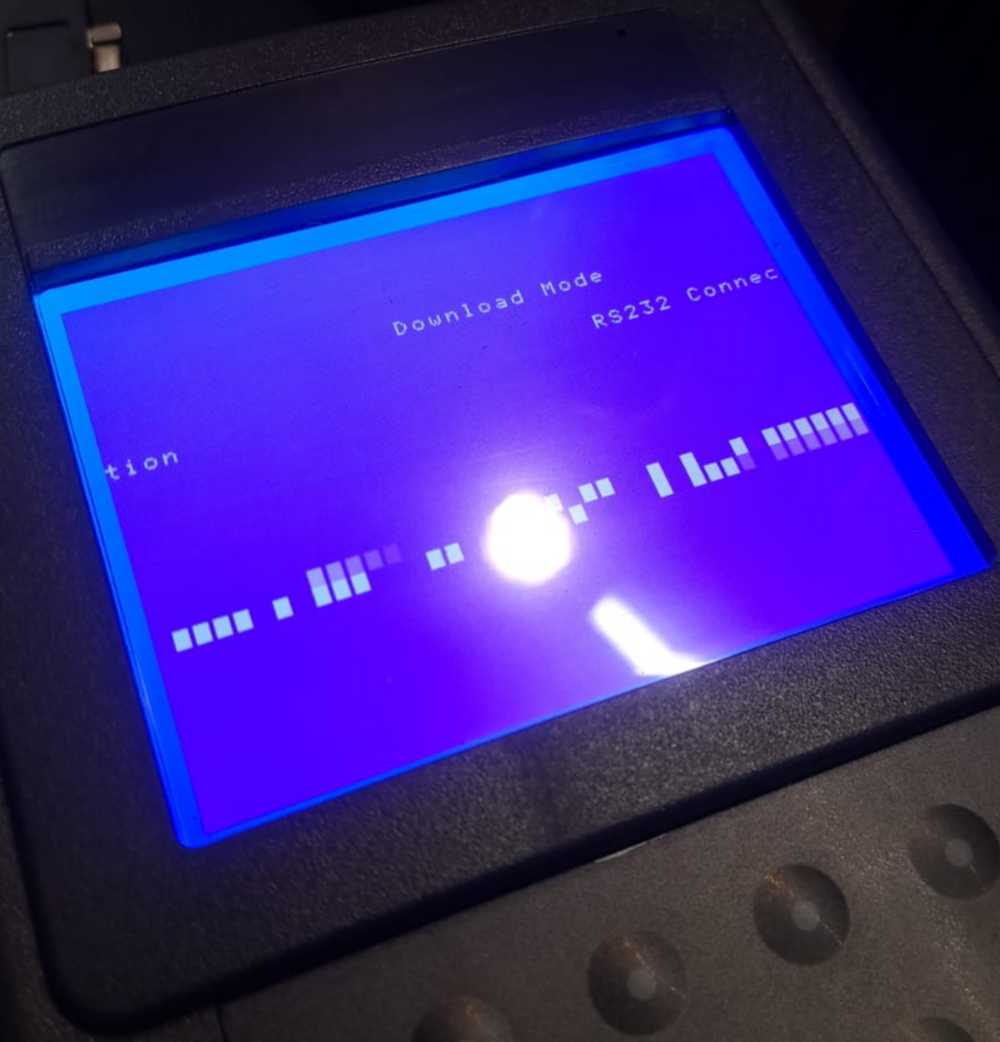
Why Does the Self-Test Fail?
The Tech2’s internal tests check the communication path. If the path is broken at the cable or the PC port, the software assumes the internal “UART” or “Level Shifter” components are dead. Always check your cables before replacing internal boards.
Troubleshooting Checklist for Tech2 PC Connection
| Checkpoint | Action |
| TIS2000 Dongle | Ensure the security dongle (or crack) is active and recognized by the OS. |
| COM Port Selection | Open Device Manager; ensure TIS2000 is set to the same COM # as your adapter. |
| RS232 Cable | Inspect the RJ45-to-DB9 adapter and the serial cable for bent pins. |
| Loopback Test | Ensure the Tech2 is powered by the AC adapter while testing with the PC. |
| VCI Board | Reseat the VCI board inside the Tech2 if connections are confirmed good. |
Why Buy from OBDIISHOP?
At OBDIISHOP, we don’t just ship tools; we provide the technical expertise to keep them running.
-
Patience-Driven Support: We help you rule out simple fixes before recommending expensive repairs.
-
Verified Compatibility: Our Tech2 kits are tested for TIS2000 and GlobalTIS communication.
-
After-Sales Service: We provide guidance on software environment setup and driver installation.
Get Expert Help Today:
-
Email: sales@obdii.shop
FAQ
Q: Why does my GM Tech2 show “VCI Self-Test FAIL”?
A: This error often occurs if the RS232 serial cable is not properly connected to the PC. The test requires a complete loopback circuit; if the COM port connection is bad, the test will fail even if the hardware is good.
Q: My Tech2 works on cars but TIS2000 says “Connection Failed.” What should I do?
A: Check your COM port settings in Windows Device Manager. Ensure the COM port number matches the one selected in the TIS2000 IO Management settings. Also, verify that your TIS2000 dongle is properly installed.
Q: Can I use a USB-to-Serial adapter with the GM Tech2?
A: Yes, but not all adapters are compatible. Use an adapter with a high-quality chipset (like FTDI) and ensure the drivers are correctly installed and mapped to a low COM port number (e.g., COM1 or COM2).
Q: What does a “Dual UART Fail” mean?
A: It indicates a communication breakdown between the Tech2 processor and the diagnostic interface. While it can mean a hardware fault, it is most frequently caused by a bad connection at the PC’s COM port or a faulty RS232 cable.
Leave a Reply