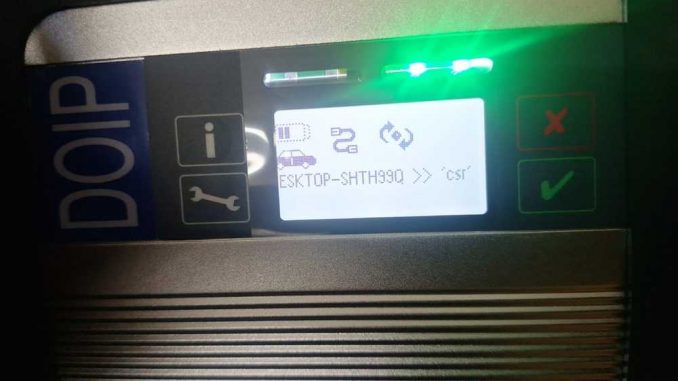
Why a Firmware Update is Often the “Missing Link”
When setting up a professional diagnostic tool like the MB SD Connect Compact 4 (C4), it is common to encounter a scenario where the software launches perfectly, but the hardware fails to talk to the vehicle.
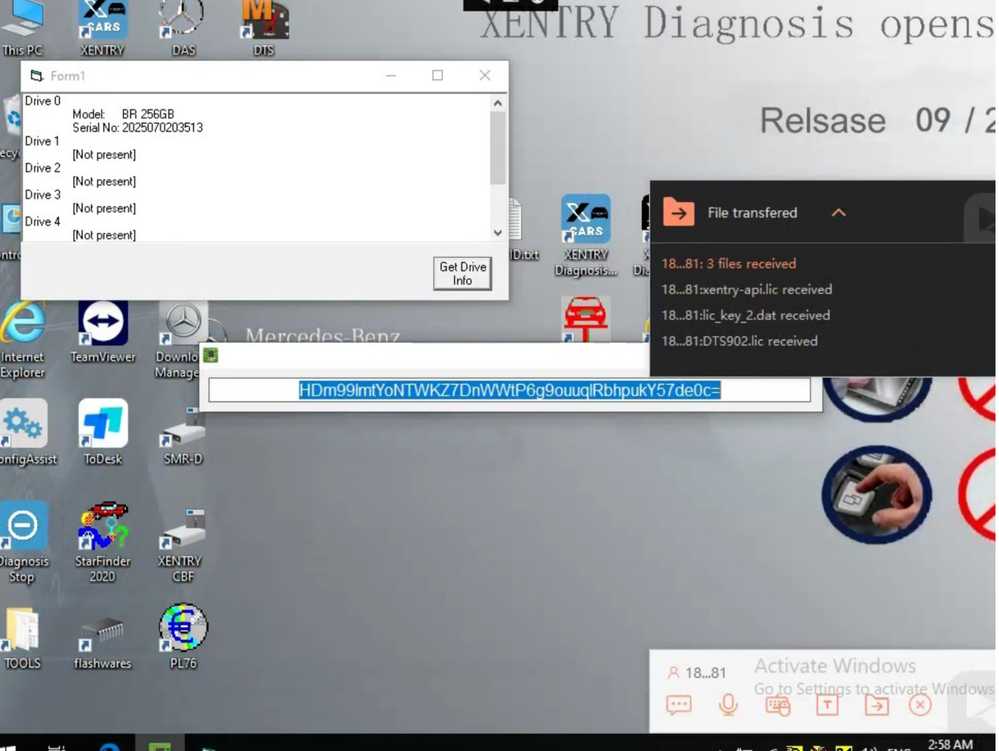
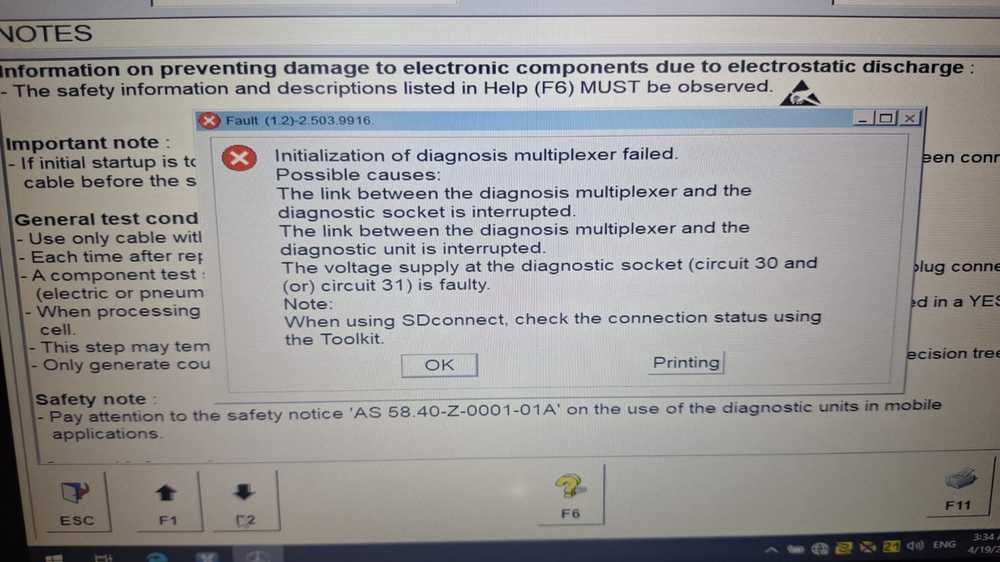
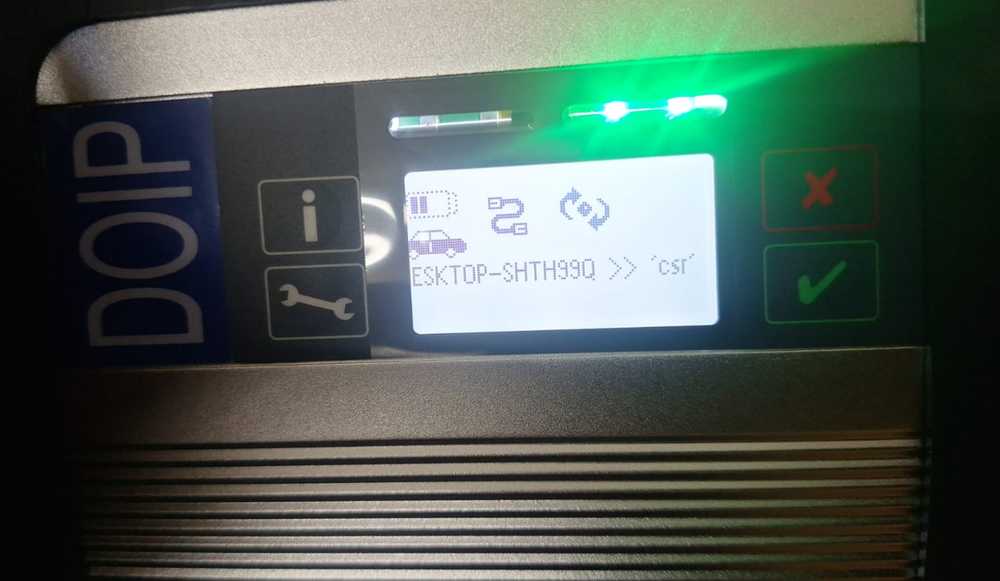
If you have recently purchased an SSD kit and find yourself stuck at the “initialization failed” screen, you aren’t alone. Here is how to identify and solve the problem.
The Problem: Software is Active, Hardware is “Invisible”
A common feedback report from users includes the following symptoms:
-
The SATA SSD boots up correctly and the laptop runs the diagnostic software smoothly.
-
The MB SD Connect C4 multiplexer is powered on but is not recognized by the software.
-
Xentry or DAS displays an error message (e.g., “Initialization of the multiplexer failed”).
-
Communication with the vehicle’s control units is impossible.
The Root Cause: Firmware Mismatch
The primary reason for this disconnect is often a firmware version mismatch. Mercedes-Benz diagnostic software is updated frequently. If the firmware inside your C4 multiplexer is older than the software version on your SSD, the “handshake” between the two will fail.
The Solution: Synchronizing Your Firmware
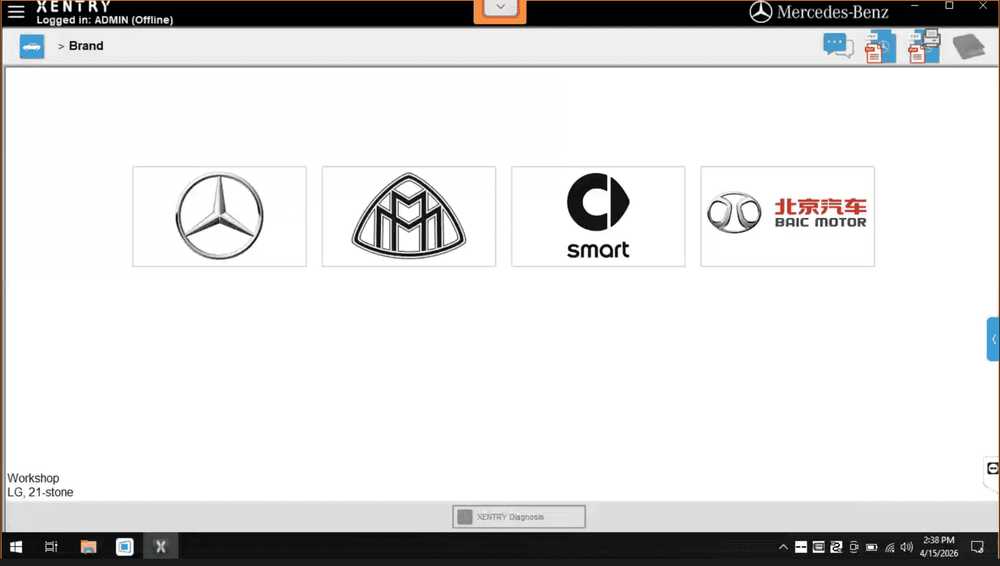
To get back on track, the hardware firmware must be updated to match the current software environment. At OBDIISHOP, we provide direct technical support to guide users through this process safely.
⚠️ Pro-Tip: The “Battery Rule”
Before attempting a firmware update on an SD Connect C4, you must install 6 fresh AA batteries into the unit. This ensures the device doesn’t lose power during the update, which could otherwise “brick” the hardware.
Pre-Connection Checklist
Before you begin troubleshooting or performing an update, verify your setup against this checklist:
| Requirement | Details |
| Laptop Hardware | Ensure your laptop has a native SATA port for the SSD. USB adapters can cause lag and connection drops. |
| Power Supply | The laptop should be connected to a wall outlet, and the vehicle ignition must be in the ON position. |
| OBD Port | Ensure the C4 is firmly seated in the vehicle’s OBD-II port. |
| Batteries | Internal AA batteries must be present for firmware synchronization. |
Why Get Your Tools from OBDIISHOP?
Setting up advanced Mercedes diagnostics can be complex. We don’t just sell the hardware; we ensure it works in your shop.
-
Expert Technical Support: We offer free installation and update assistance for all our customers.
-
Verified Hardware: Our C4 multiplexers are tested for firmware compatibility before shipping.
-
Remote Assistance: If you’re stuck, our team can help you check and solve the issue via remote support.
Need Help? Contact Us:
-
Email: sales@obdii.shop
Conclusion
A “connection failed” error doesn’t mean your hardware is broken. In most cases, a simple firmware update is all it takes to bridge the gap between your software and the vehicle. With the right support and a few minutes of configuration, you’ll be back to performing full vehicle diagnostics.
Frequently Asked Questions: MB SD Connect C4 Troubleshooting
Q: Why is my MB SD Connect C4 not connecting to the vehicle?
A: The most common reason is a firmware mismatch. If the diagnostic software (Xentry/DAS) version is newer than the hardware firmware, the device will fail to initialize. Updating the C4 firmware usually resolves this.
Q: What are the hardware requirements for using the MB SD Connect C4 SSD?
A: The SSD requires a laptop with a native SATA port. It is highly recommended to avoid using USB adapters for the primary boot drive, as this can lead to connection lag and software errors.
Q: Why do I need to install AA batteries in the SD Connect C4 multiplexer?
A: During a firmware update, 6 fresh AA batteries are required to ensure a stable, uninterrupted power supply. This prevents the unit from ‘bricking’ or experiencing hardware corruption if the vehicle’s OBD power fluctuates.
Q: How can I fix the ‘Initialization of diagnosis multiplexer failed’ error?
A: First, verify that the vehicle ignition is ON and all cables are secure. If the error persists, use the SDNC Administration/Toolkit to perform a firmware synchronization to match your software version.
Q: Does OBDIISHOP offer technical support for firmware updates?
A: Yes, free technical support is provided for customers who purchased their diagnostic tools from OBDIISHOP. Support includes installation help, firmware updates, and remote troubleshooting via email at sales@obdii.shop.
Leave a Reply