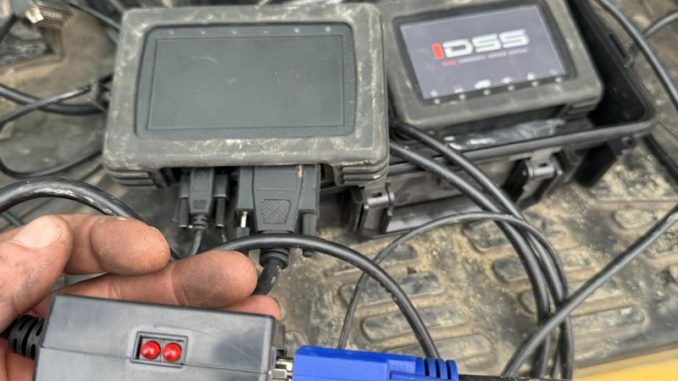
Problem: E-IDSS Hardware Will Not Connect
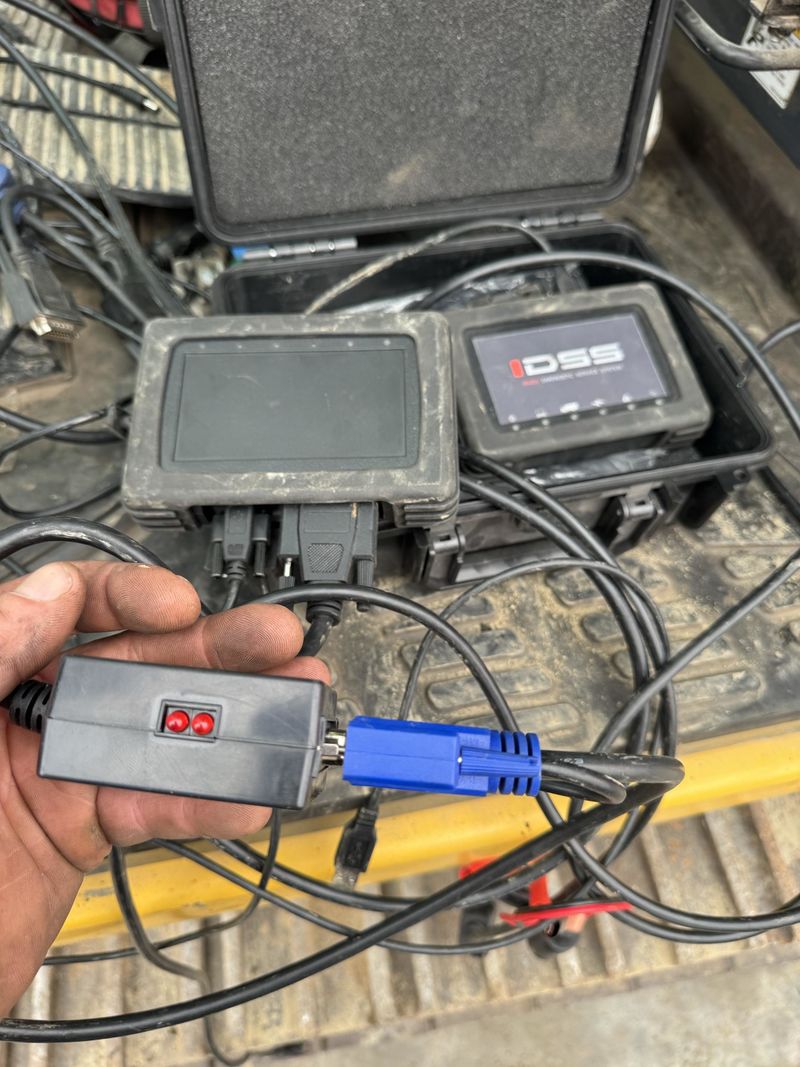
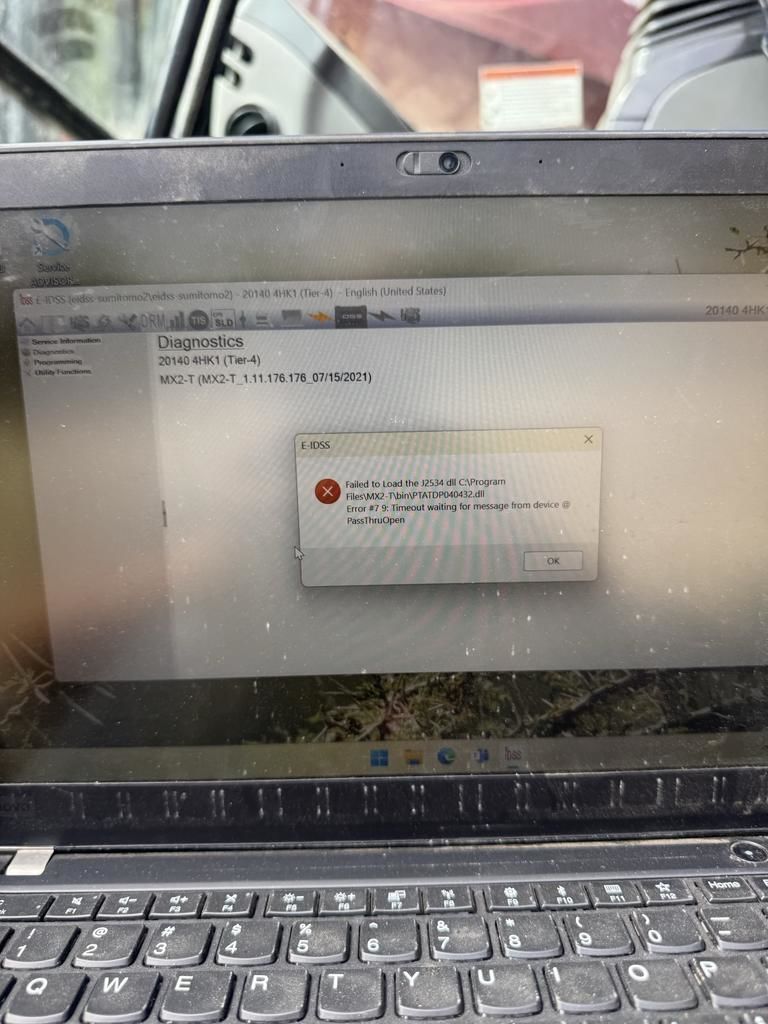
“We received our ISUZU E-IDSS hardware, but it is not connecting to any machines. The hardware will not connect and shows errors.”
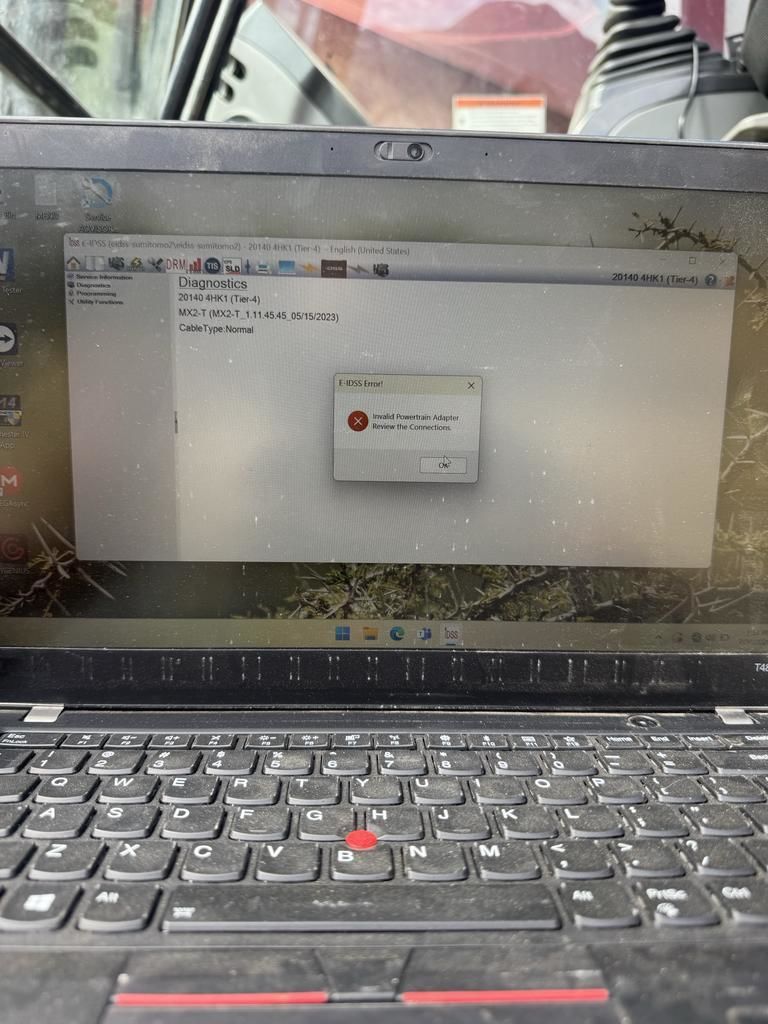
- Incorrect or missing driver
- Wrong interface selected in E-IDSS
- Outdated interface firmware
- USB connection problem
- Vehicle-side power or CAN/J1939 issue
Step 1: Install and Select the Correct Driver
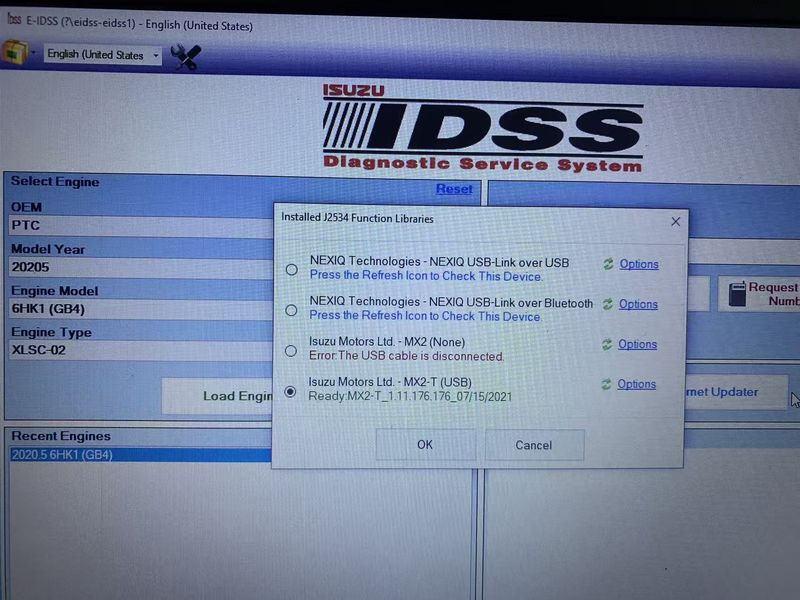
- Windows Device Manager detects the interface.
- No yellow warning icon appears.
- E-IDSS is set to the correct VCI/driver
- The interface is connected directly to the laptop.
Problem Still Exists
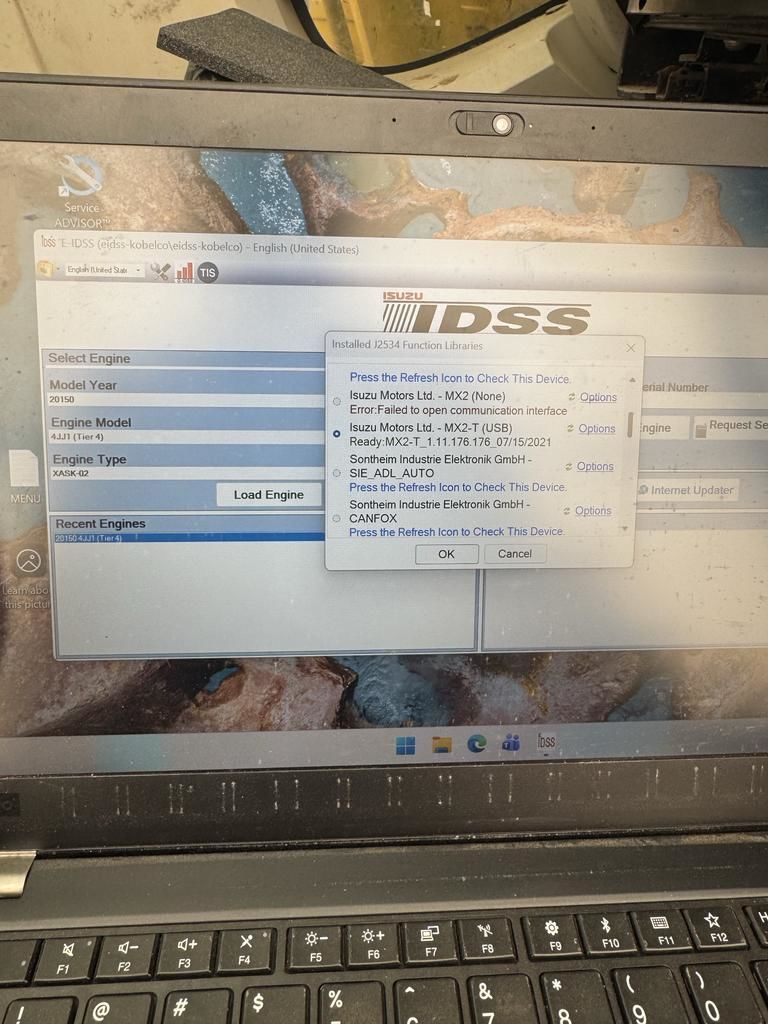
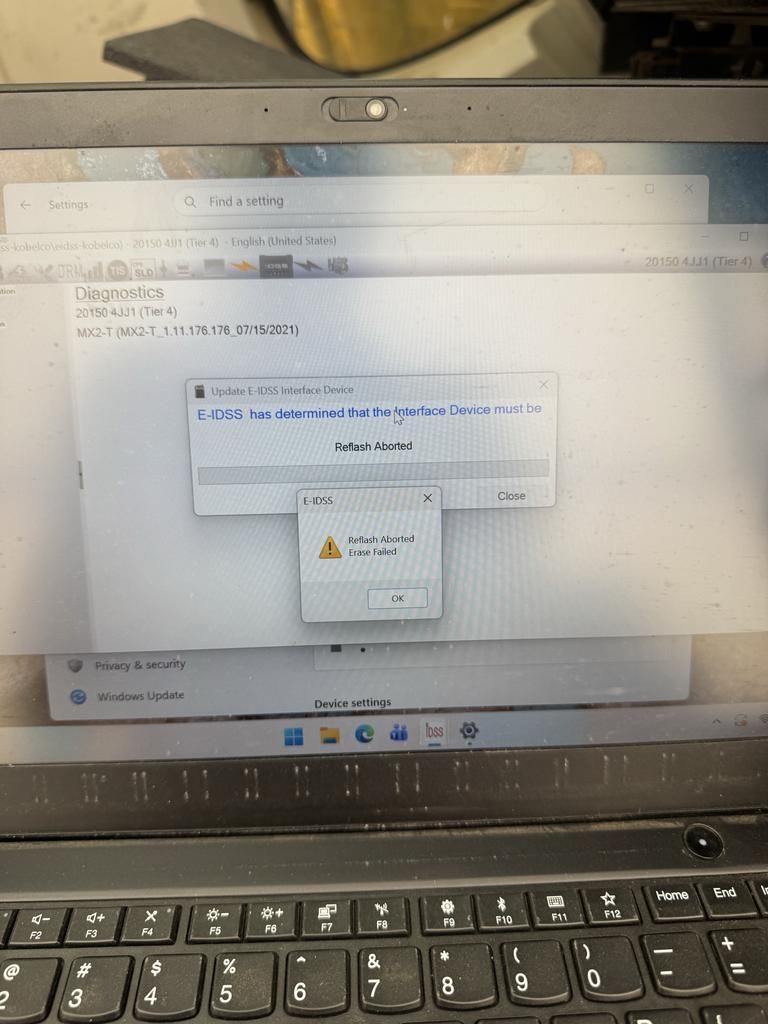
Root Cause: Interface Firmware Was Out of Date
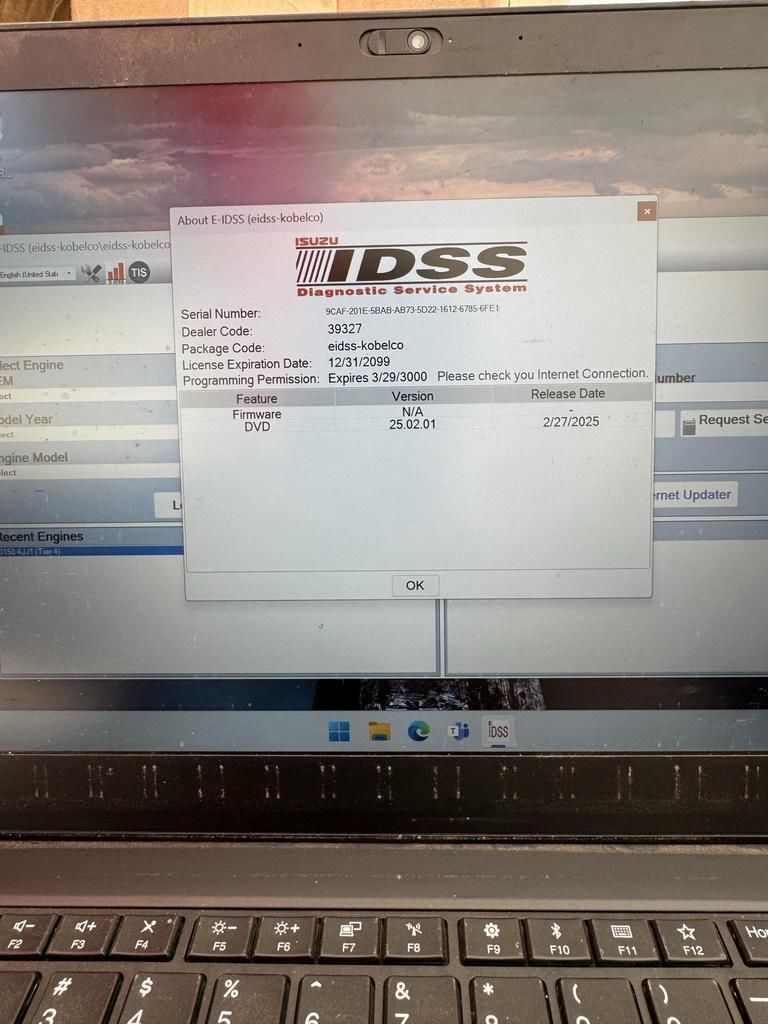
The E-IDSS software was up to date, but the diagnostic hardware firmware required an update.
Step 2: Update the ISUZU Interface Firmware
- Connect the interface to the laptop.
- Connect it to the vehicle or a stable power source.
- Download the supplied firmware update file.
- Extract the package.
- Run the firmware update utility.
- Do not disconnect USB or power during the update.
- Restart E-IDSS and test communication again.
Customer Feedback
“Firmware update solved the problem, thank you!”
Quick Troubleshooting Workflow
- Confirm the interface has power.
- Check Windows Device Manager.
- Install the correct driver.
- Select the correct interface in E-IDSS.
- Update the interface firmware.
- Test another USB port or cable.
- Check vehicle DLC power and ground.
- Check CAN/J1939 communication if the problem remains.
How to Tell Driver and Firmware Problems Apart
| Symptom | Likely Cause |
| Interface not shown in Device Manager | Driver, USB or hardware |
| Interface detected but E-IDSS cannot find it | Wrong driver/interface selection |
| E-IDSS detects the tool but vehicle communication fails | Firmware or vehicle network |
| Problem starts after software update | Firmware compatibility |
| Firmware update restores communication | Firmware mismatch confirmed |
How to Verify the Repair
- Connect the interface to the laptop and vehicle.
- Turn the ignition ON if required.
- Open E-IDSS.
- Confirm the correct interface is selected.
- Identify the vehicle or ECU.
- Read VIN, ECU information, or fault codes.
- Reconnect once more to confirm communication is repeatable.
Final Fix
ISUZU Diagnostic Tool Recommendation
For workshops that regularly service ISUZU trucks or equipment, the ISUZU IDSS Interface Kit supports G-IDSS/US-IDSS for commercial vehicles and E-IDSS for engineering equipment such as excavators and generators.
Frequently Asked Questions
Why does my ISUZU E-IDSS interface power on but not connect?
Power LEDs only confirm that the interface is receiving power. They do not prove that the driver, firmware, software configuration or vehicle network is working correctly.
Should I reinstall E-IDSS first?
Usually not.
Start by confirming Windows detects the interface and that the correct driver and communication device are selected. Reinstalling the entire application can waste time if the actual problem is VCI firmware.
Can outdated firmware cause E-IDSS communication errors?
Yes. This support case demonstrated exactly that situation: the diagnostic software was current, but the interface required a firmware update before communication could be established.
How do I know whether the problem is the vehicle or the ISUZU tool?
If possible, test the interface on another known-good compatible vehicle. If it communicates normally there, investigate diagnostic-port power and the communication network on the original vehicle.
Can a bad USB cable cause the interface to light up but not communicate?
Yes. Some cable failures still provide power while USB data communication is unreliable or completely absent.
Should I disconnect the tool during a firmware update?
No. Keep both interface power and the computer connection stable until the updater confirms completion.
Leave a Reply