For digimaster 3 , after update EBOOT, it is necessary to update kernel.
Tips: Before update EBOOT, please install D3 TOOL first.
Step 1: Press button number 8 and button OK at the same time, and turn the power on. When you see “Press OK to confirm and continue update Firmware” press OK, then it enter the procedure of updating.
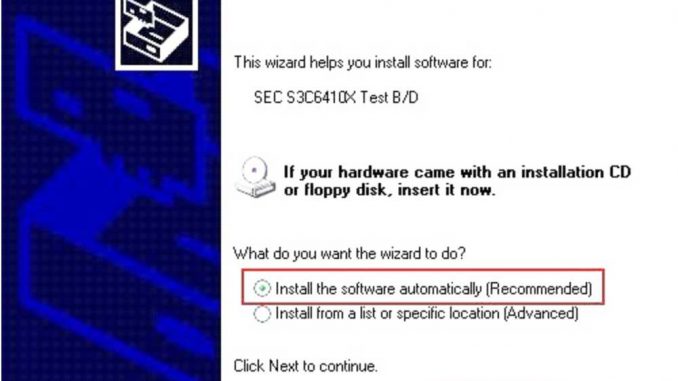
Step 2: Connect D3 with a computer through Mini USB (purple color), you can see a tip “Found New Hardware wizard”.As the image shown below.
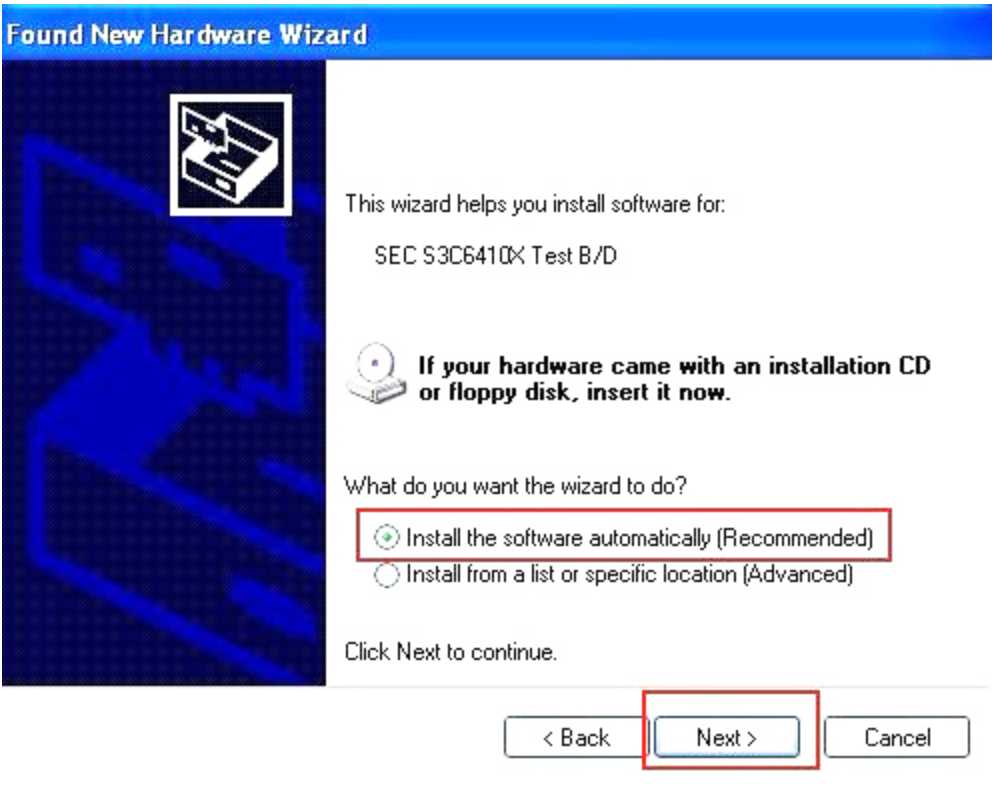
Step 3: Choose “install the software automatically”, click “click”
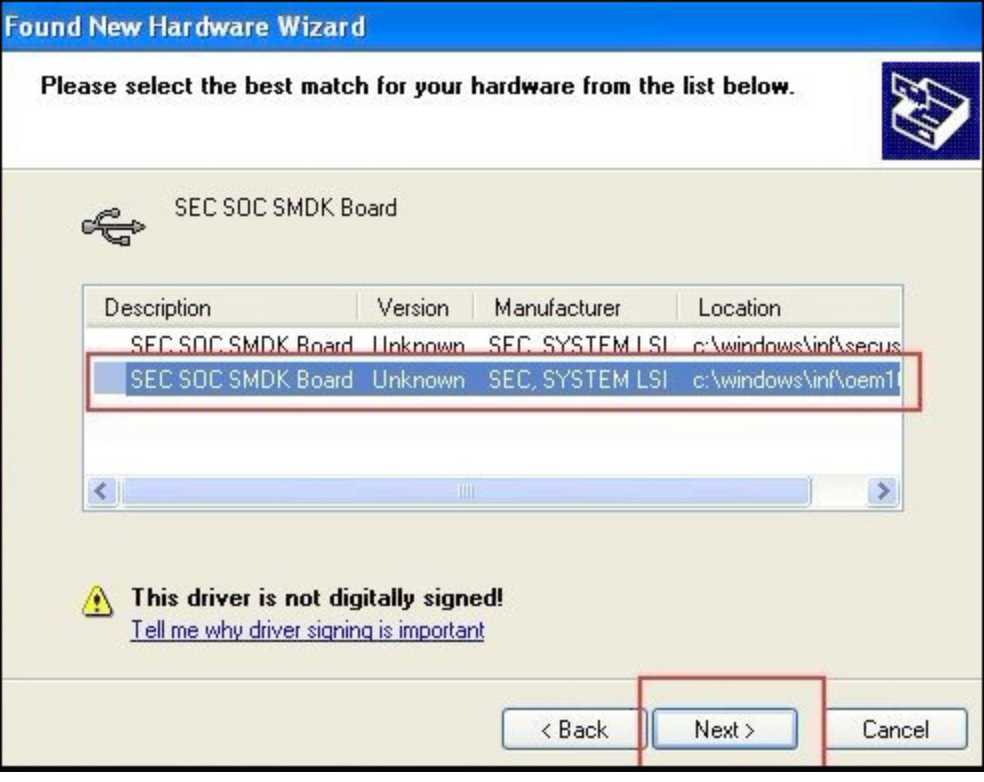
Step 4: If DIGIMASTER 3 have been installed already, choose the second “SEC SOC SMDK Board” in dialog box as shown below, and click “Next” to complete driver installation.
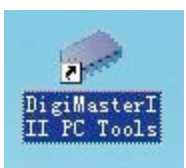
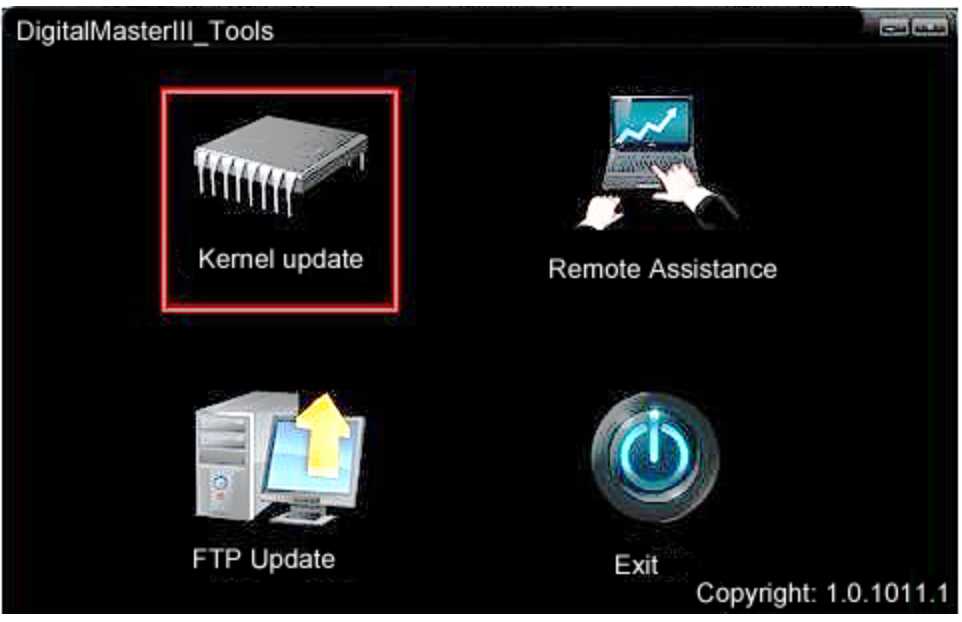
Step 5:Double-click Digimaster 3 PC Tools and choose “Kernel Update”.
Step 6: Make sure the purple Mini USB is connected, then you can see ” USB connect succeed”
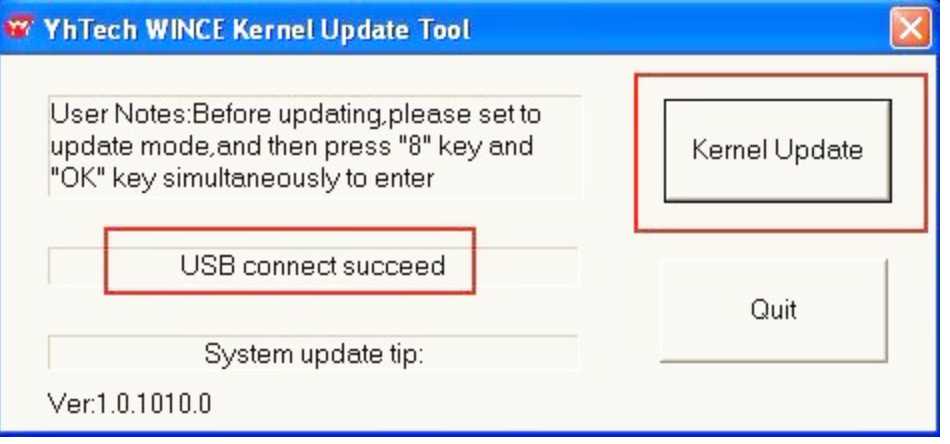
Step 7: Click “Kernel Update” and choose “EBOOT_20110427.bin” then click “OK” to start EBOOT program update.
Step 8: After 10sec. the DIGIMASTER 3 screen appears a twinkling red ‘YH’ logo which means EBOOT update is complete.
After update EBOOT successfully, please turn the power off and choose a appropriate way to update the kernel.
TIPS: Please uninstall the anti-virus software and firewall temporarily in order to run the software normally.
More request for automotive diagnostic tools , welcome to check https://www.obdii.shop
FAQ
1. My Digimaster 3 is stuck after updating EBOOT. What should I do?
If your Digimaster 3 freezes or cannot start normally after the EBOOT update, try turning the device off and restarting it in update mode again. Then perform the kernel update correctly. In many cases, the problem is caused by an incomplete kernel installation.
2. Why can’t my computer detect Digimaster 3 through USB?
This is usually caused by missing drivers, USB cable problems, or blocked system permissions. Make sure you are using the purple Mini USB cable and install the required drivers when Windows shows the “Found New Hardware” message.
3. Which driver should I choose during Digimaster 3 installation?
When the driver selection window appears, select “SEC SOC SMDK Board” and continue the installation. This driver is required for proper communication between Digimaster 3 and the computer.
4. How do I know if the Digimaster 3 EBOOT update was successful?
After the update finishes, the Digimaster 3 screen will display a flashing red “YH” logo. This means the EBOOT firmware has been updated successfully.
5. Why does Digimaster 3 show “USB connect failed”?
This error may happen if the USB cable is loose, the wrong USB port is used, or the drivers are not installed correctly. Reconnect the cable, restart the software, and make sure the device is powered on.
6. Do I need to install D3 TOOL before updating the kernel?
Yes. D3 TOOL must be installed before starting the EBOOT or kernel update process, otherwise the update tool may not recognize the device correctly.
7. Can antivirus software block the Digimaster 3 update?
Yes. Some antivirus programs or Windows firewalls may prevent the update software from communicating with the device. It is recommended to temporarily disable antivirus and firewall protection during the update process.
8. What should I do if the kernel update stops halfway?
Do not disconnect the power immediately. Wait a few minutes to confirm whether the process is frozen. If the update still does not continue, restart the device and repeat the update procedure carefully.
9. Is it safe to update Digimaster 3 firmware at home?
Yes, as long as you follow the instructions carefully, keep the power stable, and do not disconnect the USB cable during the update process.
10. Why is my Digimaster 3 not turning on after update?
This may happen if the EBOOT or kernel update was interrupted. Try entering recovery/update mode again and reinstall the firmware and kernel files properly.
Leave a Reply