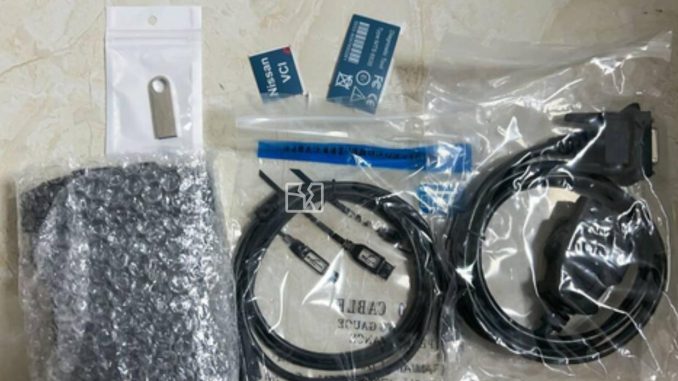
You’ve just received your Nissan VCI diagnostic interface, plugged everything in, and started installing Consult III Plus, only to be stopped by a “file check failed” error. Don’t worry: this is one of the most common installation problems, and it is usually easy to fix.
This guide explains why the error happens and walks you through the fixes.
What You’ll See
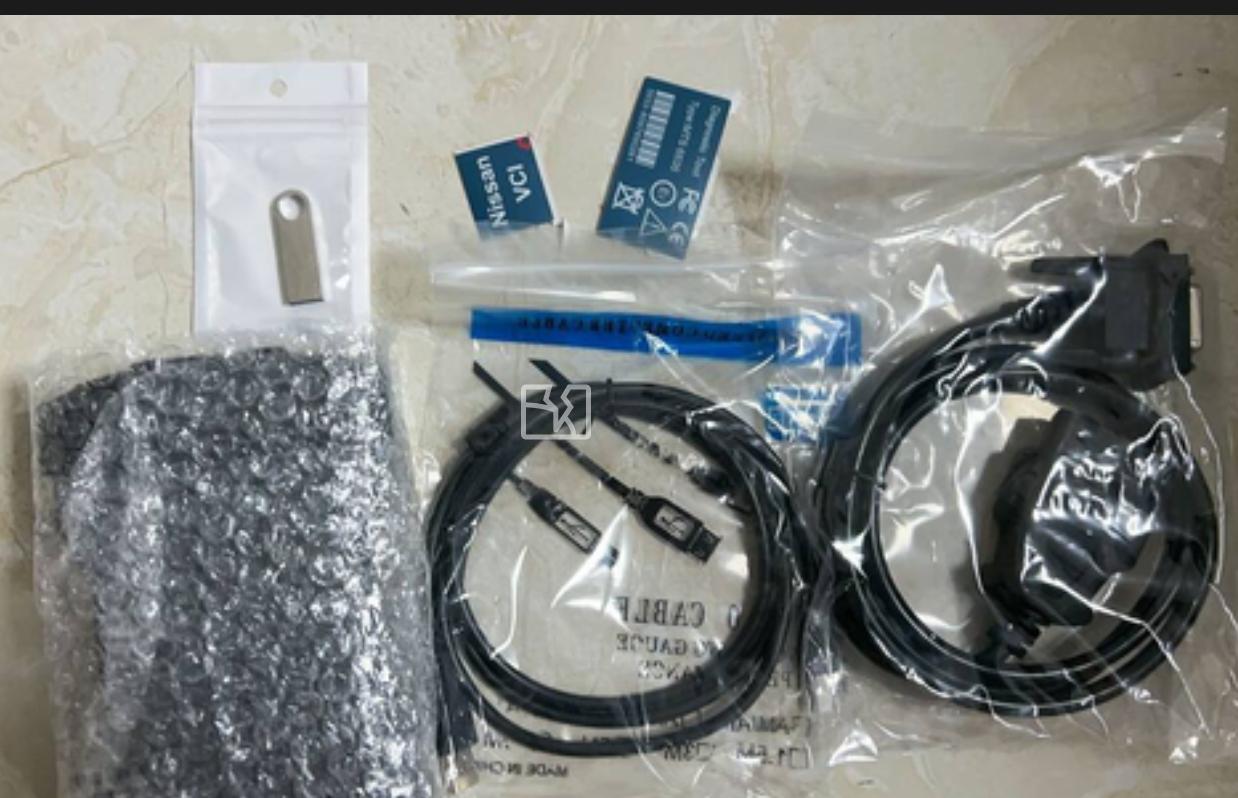
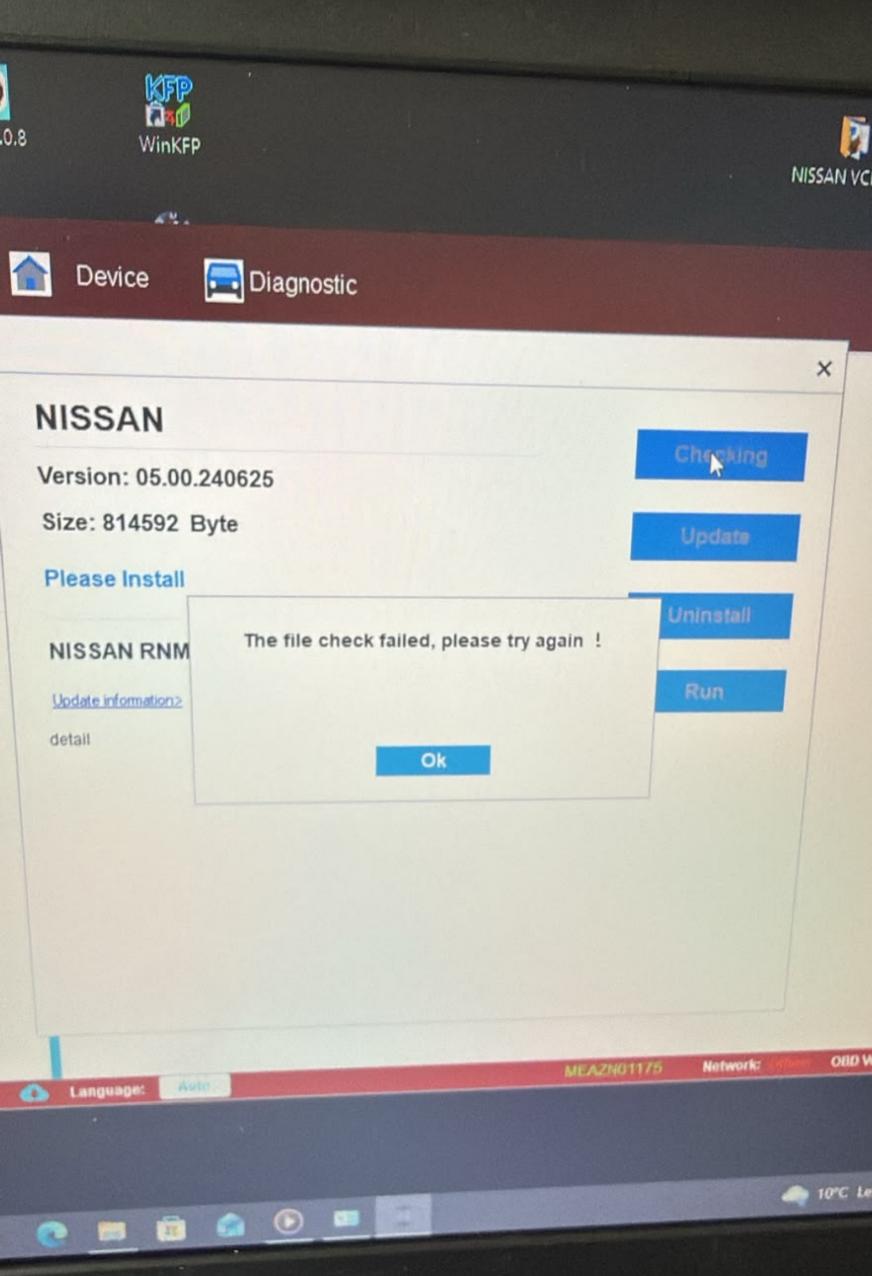
During installation or first launch of the Nissan Consult III Plus software, a pop-up appears saying the file check has failed, and the installation or program cannot continue.
Why Does This Error Happen?
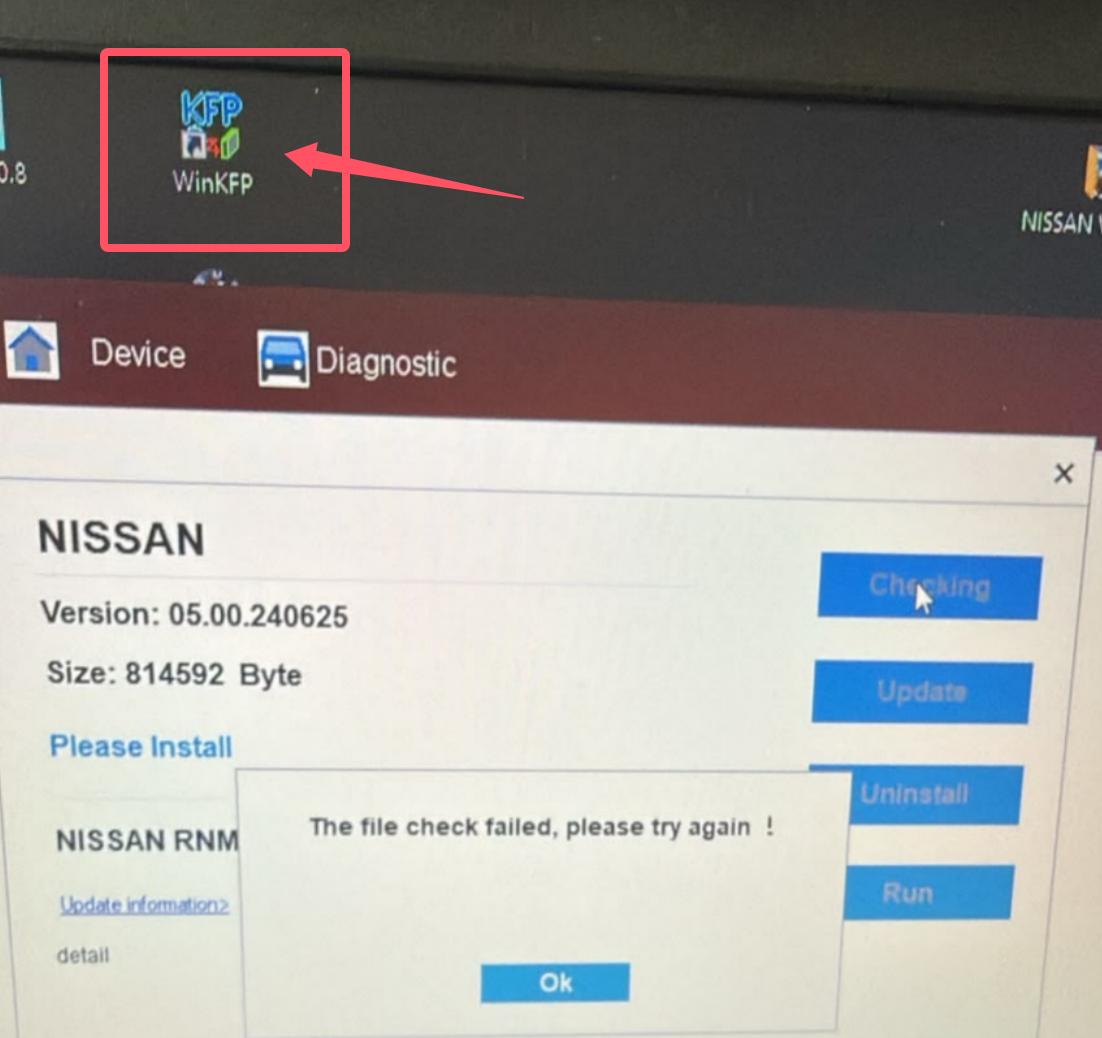
The most common cause is software conflict with other brand-specific diagnostic programs already installed on the same computer.
Professional diagnostic suites such as BMW ICOM software, Mercedes Star Diagnosis, or other OEM-level tools often install their own system drivers, runtime libraries, and registry entries. When Nissan Consult III Plus is installed on the same machine, these components can interfere with each other’s file verification, which triggers the “file check failed” message.
Less common causes include:
- Antivirus or Windows Defender blocking or quarantining installer files
- An incomplete or corrupted download or copy of the software
- Insufficient user permissions (not running the installer as administrator)
- Leftover files from a previous failed installation
How to Fix It
Solution 1: Install on a Clean, Dedicated Computer (Recommended)
The most reliable fix is to use a laptop that has no other brand’s diagnostic software installed. This is also how most professional workshops operate: one laptop per diagnostic brand.
If you bought a full kit with a pre-configured laptop, use that machine only for Nissan diagnostics.
Solution 2: Uninstall the Conflicting Software
If you must use the same computer:
- Open Control Panel > Programs and Features.
- Uninstall the other diagnostic software (for example, BMW ICOM / ISTA / E-Sys related programs).
- Delete any leftover folders from the installation directories and from
C:\Users\[YourName]\AppData. - Restart the computer.
- Reinstall the Nissan Consult III Plus software.
Customer case: a user who saw this exact error removed the BMW ICOM software from the laptop and the Nissan software installed and ran normally afterwards.
Solution 3: Check Antivirus and Permissions
- Temporarily disable your antivirus or add the installer folder to its exclusion list.
- Right-click the installer and choose Run as administrator.
- Make sure the installation files are fully copied to the local drive (not run from a USB stick or a compressed archive).
Solution 4: Use a Separate Environment
Advanced users may try a separate Windows partition (dual boot). A virtual machine can also work in some cases, but USB passthrough for the VCI can be unreliable, so a physical separate installation is generally safer.
How to Prevent the Problem
- Keep one diagnostic brand per laptop whenever possible.
- Use a fresh Windows installation for professional diagnostic software.
- Disable automatic Windows and antivirus interference during installation.
- Always follow the installation manual supplied with your kit.
What’s in the Nissan Diagnostic Kit?
A typical Nissan VCI diagnostic kit includes:
- VCI main unit (diagnostic interface)
- OBD-II vehicle cable
- USB cable for connecting to the laptop
- Consult III Plus software (version depends on the package)
- Optional pre-configured laptop
- Carrying case and manuals
Still Having Trouble?
If the error continues after trying the steps above, contact our technical support team with:
- A screenshot of the error message
- Your Windows version
- A list of other diagnostic software installed on the computer
We offer remote installation guidance to help you get running quickly.
Looking for a hassle-free setup? Choose our Nissan diagnostic kit with a pre-installed laptop: tested, activated, and ready to connect to your vehicle.
Frequently Asked Questions (FAQ)
What does the “file check failed” error mean in Nissan Consult III Plus?
It means the installer or program could not verify that its required files and components are intact and unmodified. This is most often caused by conflicts with other diagnostic software on the same computer, but it can also be triggered by antivirus interference or an incomplete installation package.
Can I install Nissan Consult III Plus on a laptop that already has BMW ICOM software?
We don’t recommend it. Brand-specific diagnostic suites can install overlapping drivers and system components that interfere with each other. For the most stable result, use a dedicated laptop for Nissan, or fully uninstall the other software and clean up leftover files before installing.
Do I need a separate laptop for each diagnostic brand?
It isn’t strictly required, but it is the most reliable approach and is common practice among professional workshops. A dedicated laptop avoids driver conflicts, reduces troubleshooting time, and keeps each program running as intended.
I uninstalled the other software, but the error is still there. What should I do?
Leftover files and registry entries are often the cause. Try these steps:
- Delete remaining program folders and the related folders in
AppData. - Restart the computer.
- Temporarily disable your antivirus.
- Run the Nissan installer as administrator.
If the error persists, a fresh Windows installation is the cleanest solution.
Can I run the software in a virtual machine?
In some cases yes, but it is not guaranteed. USB passthrough for the VCI device can be unreliable in virtual environments, which may cause connection problems. A physical dual-boot setup or a dedicated laptop is generally safer.
Should I turn off my antivirus during installation?
Some antivirus programs flag diagnostic installers or driver files by mistake. Temporarily disabling it, or adding the installation folder to the exclusion list, can help. Re-enable your protection once installation is complete, and only install software obtained from your supplier.
Which operating system should I use?
Please follow the system requirements in the manual supplied with your kit, as supported Windows versions depend on the software version. If you’re unsure, contact our support team with your Windows version before installing.
Does the kit come with installation support?
Yes. If you get stuck, send our technical support team a screenshot of the error, your Windows version, and a list of other diagnostic software installed on the computer, and we will guide you through the installation.
What’s the easiest way to avoid installation problems altogether?
Choose a kit with a pre-installed, pre-tested laptop. The software is already installed and configured on a clean system, so you can connect to your vehicle right away.
Leave a Reply