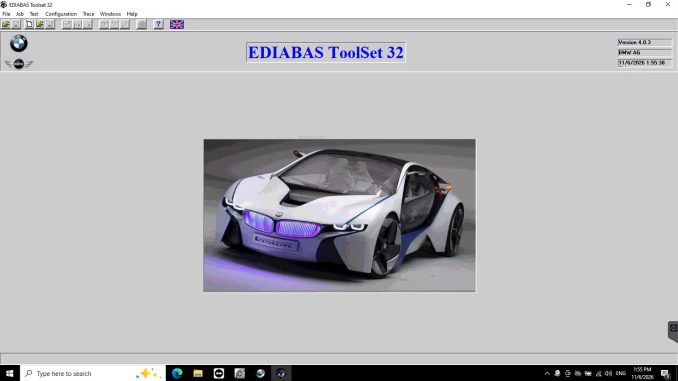
It’s common for BMW ISTA to connect to a car through an ICOM without any trouble while Tool32, WinKFP, INPA, or other engineering tools fail. That doesn’t automatically mean the ICOM is defective.
ISTA and the older engineering tools don’t share the same software configuration. Tool32 and WinKFP depend on the EDIABAS installation, its interface settings, the ECU data files, and the IP address the ICOM is using. So if ISTA works but Tool32 throws an EDIABAS initialization error or WinKFP shows Error 106, check the EDIABAS path first, then make sure the engineering tools are pointed at the ICOM’s current IP address.
Quick Answer
- Close ISTA and any other BMW diagnostic applications.
- Confirm that the EDIABAS installation folder actually exists.
- Find the ICOM’s current IP address with ITool Radar or the equivalent ICOM utility.
- Reserve the ICOM for the engineering application if your setup requires it.
- Enter that same IP in EasyConnect or your EDIABAS configuration utility.
- Restart Tool32 or WinKFP and confirm ECU communication before attempting any programming.
The Problem
A typical report goes like this: ISTA diagnoses the vehicle normally through the ICOM, but the engineering and programming applications won’t work.
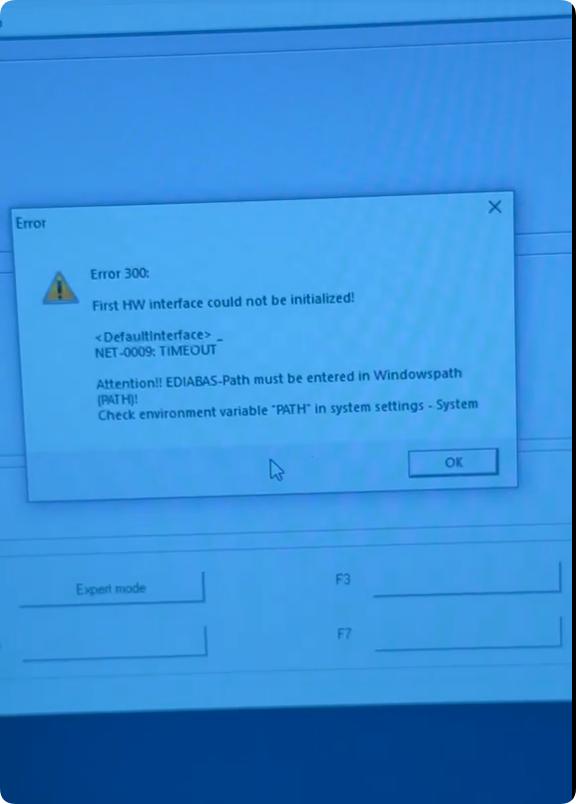
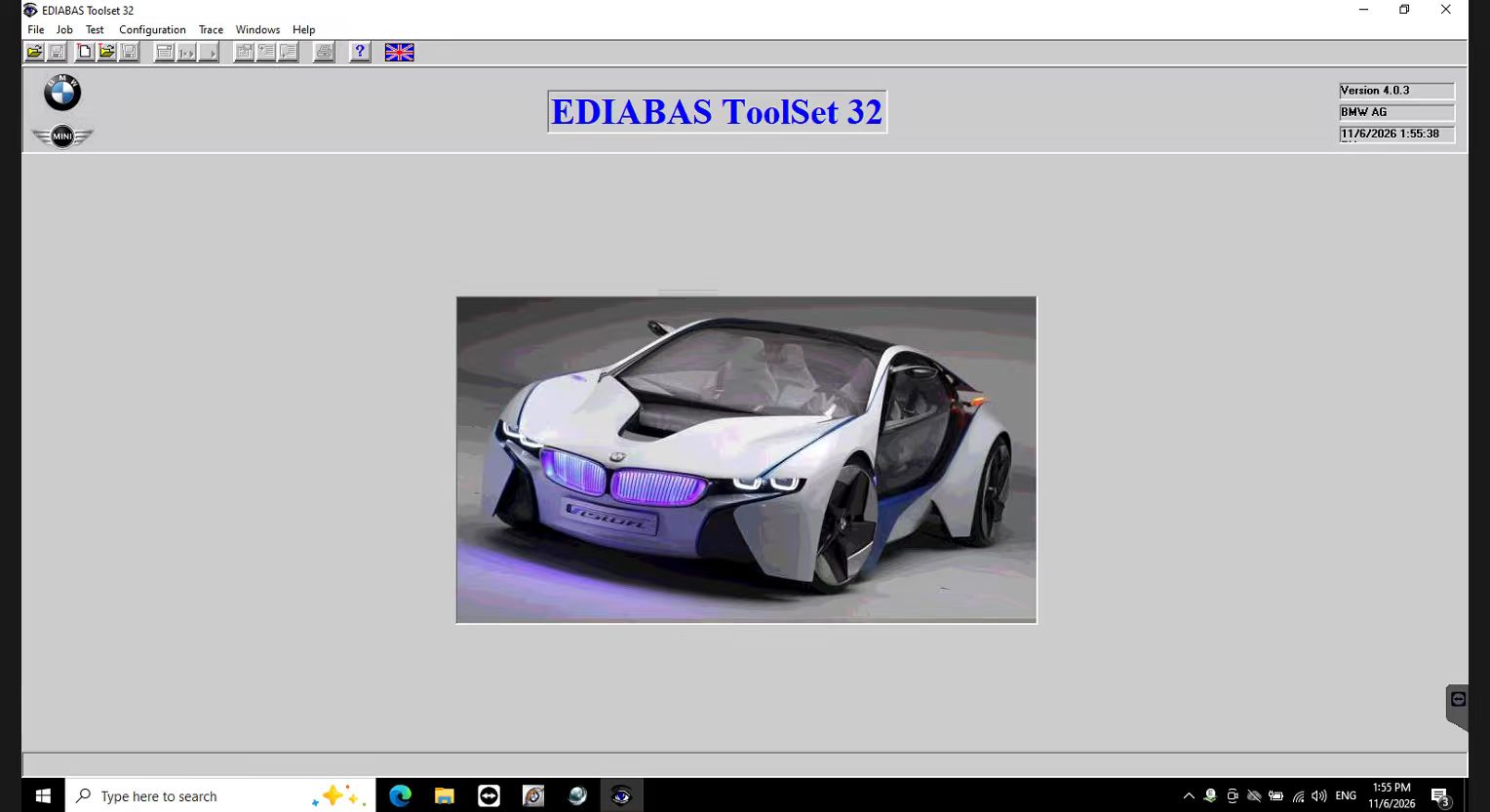
Tool32 shows an error such as:
EDIABAS-Error: ApiCheck: initialization error
or:
C:\EC-APPS\EDIABAS is unavailable
It appears as soon as you load an SGBD/PRG file such as SZL_60.prg or DSC_60.prg, and the jobs window stays empty.
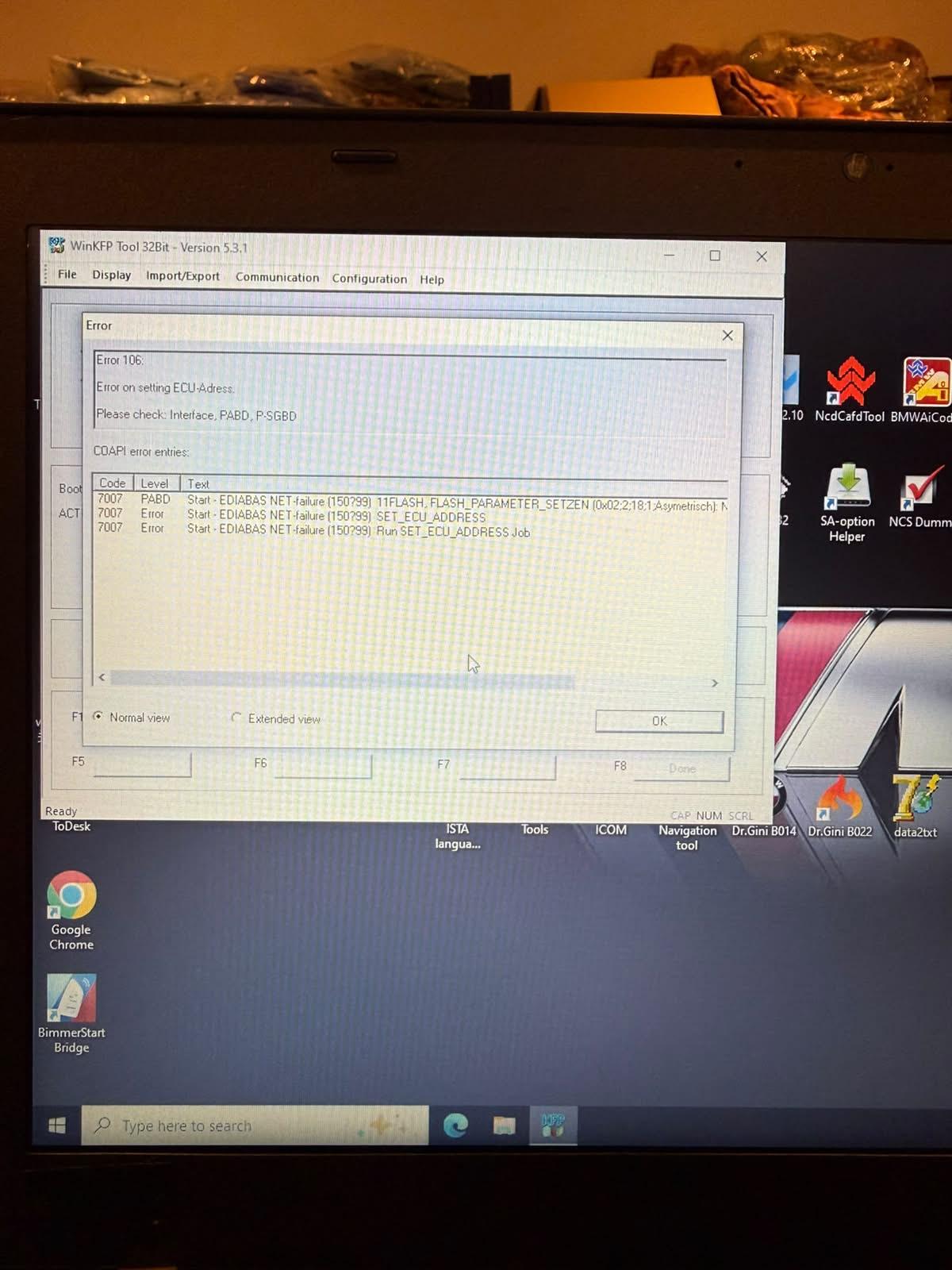
WinKFP shows:
Error 106: Error on setting ECU-Adress
Please check: Interface, PABD, P-SGBD
Both errors point to the engineering-tool communication environment, not necessarily to a failed ICOM.
Why ISTA Can Work While Tool32 and WinKFP Fail
When ISTA detects the car, it proves the computer, ICOM, and vehicle can communicate under ISTA’s configuration. It says nothing about whether EDIABAS is set up correctly. The engineering tools use a different chain:
Tool32 / WinKFP → EDIABAS → ICOM configuration → ICOM IP → ECU
A fault anywhere in that chain breaks the engineering tools while ISTA carries on. Common causes:
| Possible cause | Typical result |
|---|---|
| Wrong EDIABAS installation path | Tool32 initialization failure |
| Missing or incorrect Windows PATH entry | EDIABAS API fails to initialize |
| Wrong ICOM IP in the engineering configuration | ICOM can’t be reached |
| ICOM not reserved, or in use by another BMW application | Timeout or unavailable interface |
| Wrong EDIABAS interface mode | Engineering tools can’t communicate |
| Missing or incorrect SGBD/PRG files | ECU jobs won’t load |
| Incorrect WinKFP data or configuration | PABD/P-SGBD or ECU-address errors |
Fix 1: Check the EDIABAS Installation Path
Start with the Tool32 error, before touching any ICOM settings. If Tool32 says C:\EC-APPS\EDIABAS is unavailable, check whether that folder exists. Depending on the BMW software package, EDIABAS may live there or in another directory set by the installer.
Don’t just create an empty folder with that name. The path has to point to a real EDIABAS installation with its executables, libraries, configuration files, and ECU data. Confirm that:
- The EDIABAS directory exists and contains a
BINfolder. - The required EDIABAS DLL/API files are installed.
- The Windows path points to the correct installation.
- The SGBD data folder contains the PRG files you need.
- Tool32 isn’t loading files from an old second installation.
Having several BMW packages on one PC can leave behind duplicate EDIABAS installations or stale environment variables. Then ISTA uses one environment while Tool32 loads another.
Once the correct environment is restored, Tool32 should open the selected PRG file and fill in its job list. If the list is still blank, keep checking the EDIABAS installation before blaming the ICOM.
Fix 2: Find the ICOM’s Current IP Address
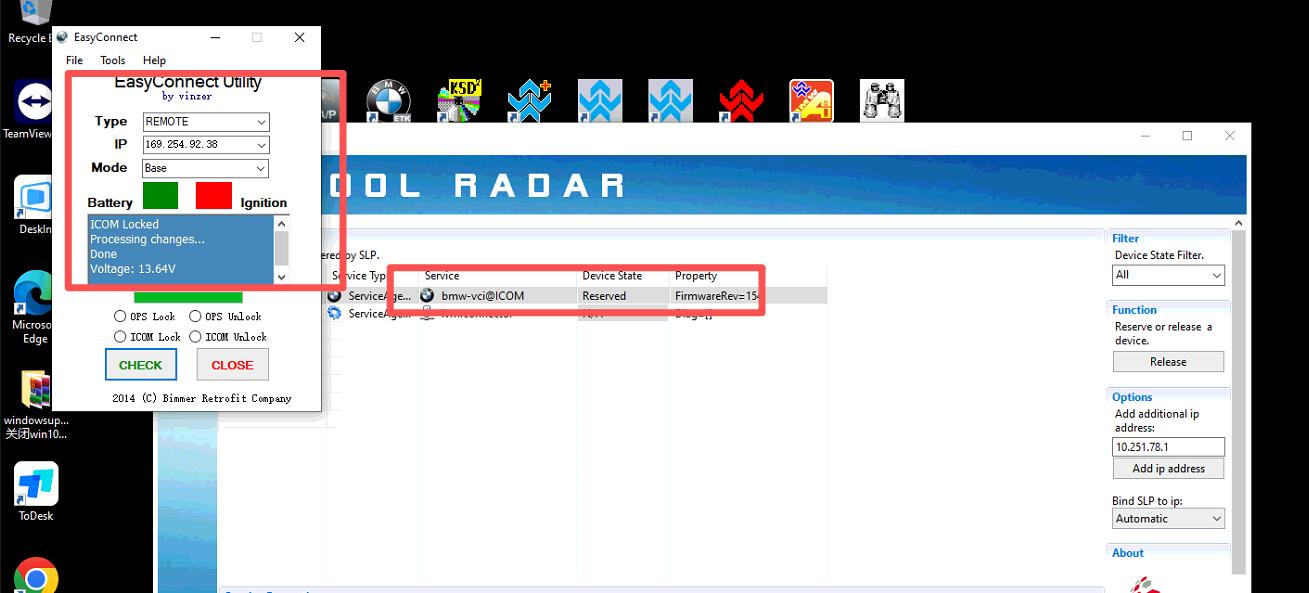
Read the IP from the interface itself rather than copying it from another computer or a tutorial. Connect vehicle → ICOM → laptop, switch the ignition on as needed, then open ITool Radar, IToolReader, or the discovery utility that came with your BMW software. Find your ICOM and note its IP.
It may be a link-local address starting with 169.254.x.x. The address can change, so always use the one shown for your own interface.
Fix 3: Reserve the ICOM and Bind the IP in EasyConnect
Close ISTA first. Another BMW application may be holding the interface, and running ISTA and Tool32 together makes it impossible to tell which program owns the connection.
Then, in ITool Radar, select your ICOM, confirm the IP, and reserve the interface. Check that its status changes.
For software packages that use EasyConnect, the workflow is:
ITool Radar (read IP) → reserve ICOM → EasyConnect (enter the same IP) → Check
- Select the ICOM/remote connection mode your installation requires.
- Enter the ICOM IP you just read. Never use a random or previously used address.
- Lock the interface if that option is offered.
- Click Check and confirm the connection test succeeds.
Different EDIABAS generations configure ICOM communication differently. Older packages usually use EasyConnect, while newer EDIABAS installations may use their own configuration utility and RPLUS/ICOM settings. Use the method that came with your installed software, and don’t overwrite configuration files with settings copied from an unrelated package.
Fix 4: Verify the EDIABAS Interface Configuration
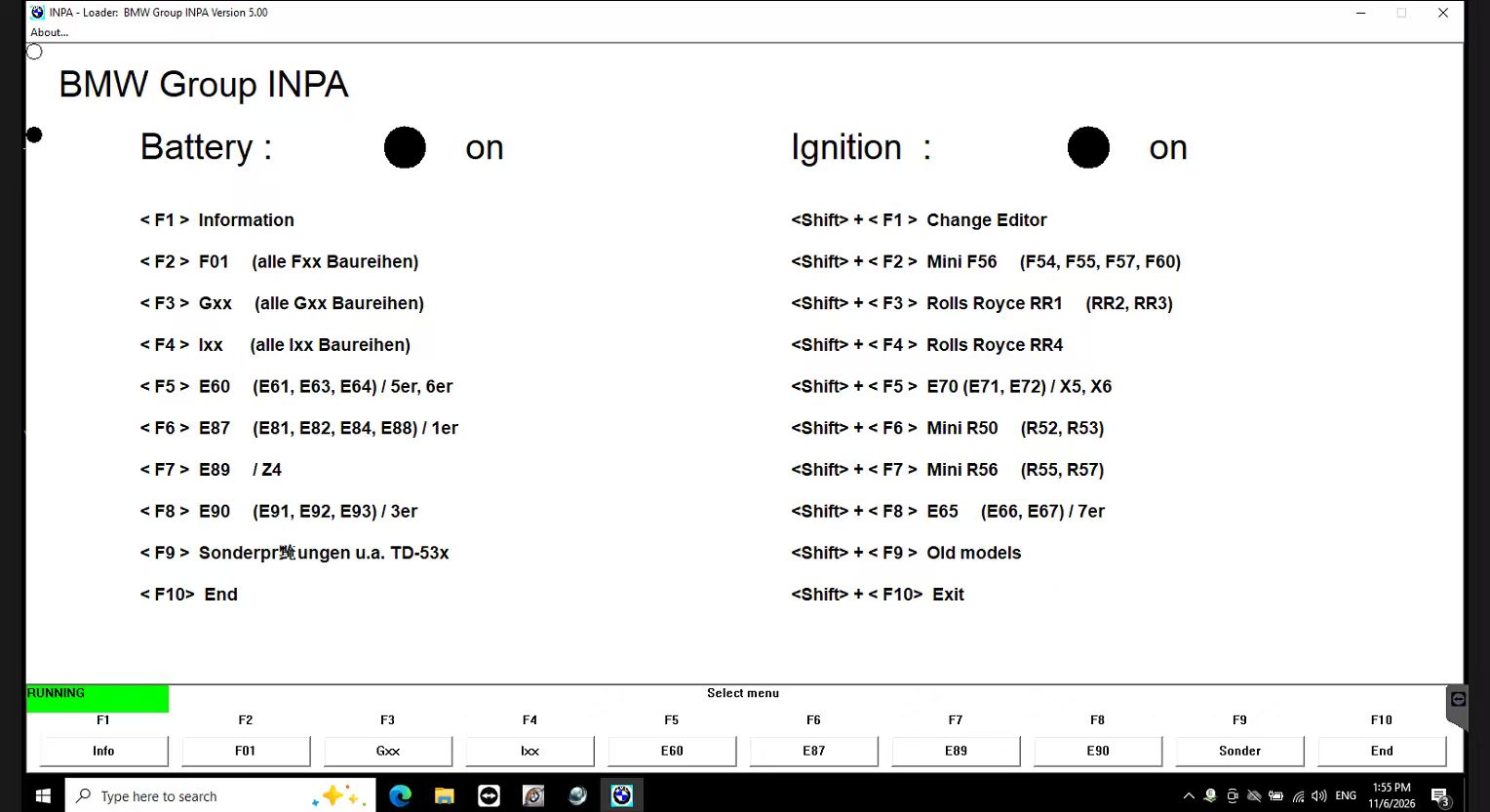
Tool32, INPA, NCS Expert, and WinKFP all rely on EDIABAS. For ICOM work, the EDIABAS configuration has to point at the ICOM, not at a K+DCAN or offline setup. In modern EDIABAS configurations this can be an interface setting such as:
RPLUS:ICOM_P
with the ICOM address stored in the matching RPLUS configuration. The exact files depend on your EDIABAS version, which is why copying an EDIABAS.INI from another computer is a poor shortcut.
If you’ve also used K+DCAN, ENET, ISTA, INPA, or NCS Expert on this laptop, check that old environment variables or configuration files aren’t forcing the wrong interface.
Fix 5: Test Tool32 Again
- Close Tool32 completely and reopen it.
- Load the correct PRG/SGBD file for the target control unit.
- Check that the jobs list appears.
- Run a safe identification or read job first.
Don’t start with coding or programming. The first goal is simply to prove that Tool32 → EDIABAS → ICOM → ECU communication works. A good result is Tool32 loading the PRG file and listing its jobs instead of an API initialization error.
Troubleshooting WinKFP Error 106
If Tool32 now communicates but WinKFP still shows Error 106: Error on setting ECU-Adress, work through these in order:
- Confirm basic communication. If Tool32 can’t talk to the ECU, WinKFP won’t either. Don’t troubleshoot programming functions until it does.
- Check the ECU data. Incorrect, incomplete, or mismatched programming data can cause PABD, P-SGBD, or ECU-address errors. Verify that the right data set for your chassis is installed and imported.
- Check the selected ECU. Choosing the wrong controller or data can produce an address error even when the ICOM works fine.
- Make sure nothing else holds the ICOM. Close ISTA, INPA, and Tool32, then reserve the ICOM and try again.
- Confirm the interface. WinKFP must use the same ICOM connection you verified in Tool32.
Quick Diagnostic Table
| Symptom | First area to check |
|---|---|
| EDIABAS initialization error | EDIABAS installation and path |
C:\EC-APPS\EDIABAS unavailable |
Missing or incorrect EDIABAS directory |
| PRG loads but jobs are blank | EDIABAS/SGBD installation |
| Tool32 times out connecting to the ECU | ICOM IP, interface, reservation |
| WinKFP Error 106 | Interface, ECU data, PABD/P-SGBD |
| ICOM disappears after ISTA use | Release and re-reserve the interface |
| Engineering tool uses an old IP | Update the ICOM IP configuration |
Do You Need to Set a COM Port for ICOM?
Normally no. ICOM is a network interface, so don’t start by changing Windows COM ports. Those matter for USB K+DCAN adapters. For ICOM, focus on the chain of network connection → ICOM IP → reservation → EDIABAS interface → ECU communication. Changing an unrelated COM port won’t fix a wrong IP.
E-Series vs. Newer Platforms
Tool32, WinKFP, and NCS Expert belong mainly to BMW’s legacy engineering environment and are most common on E-Series cars. For F-, G-, and newer platforms, ISTA and E-Sys workflows are often more appropriate, depending on the job. Having an ICOM connected doesn’t mean WinKFP is the right tool, so identify the chassis, model year, target ECU, required operation, and installed data version before coding or programming.
Don’t Flash Until Communication Is Stable
If your goal is programming rather than diagnosis, resolve every communication problem first. Before you start a flash, make sure that:
- ICOM communication is stable and the Ethernet and ICOM cables are secure.
- The correct vehicle, ECU, and programming data are identified.
- Battery support is connected as the programming procedure requires.
- The laptop is on AC power, with sleep and hibernation disabled.
- Nothing will interrupt the network connection.
If communication drops mid-flash, the ECU can become unresponsive and need a recovery procedure. Never keep retrying programming while Tool32, EDIABAS, or ICOM communication is still unreliable.
ICOM Options for Workshops
If the problem comes from an incomplete software installation, replacing a working ICOM isn’t necessarily the answer. Pick based on what you already have:
- You need ICOM hardware and engineering software: consider an ICOM NEXT A+B+C package with BMW engineering software, suited to workshops that need ISTA plus Tool32, WinKFP, INPA, NCS Expert, and E-Sys.
- You already own a working ICOM: a BMW ICOM Engineers Software package may make more sense than buying another interface.
- You want a ready-to-use system: an ICOM NEXT plus preconfigured laptop package reduces installation and configuration problems, since interface, software, and computer arrive as one system.
Before ordering, send your BMW model, year, chassis, target ECU, and required function so the configuration can be checked first.
Final Checklist
- Confirm the EDIABAS directory exists and Windows points to the correct installation.
- Verify that the required PRG/SGBD files are present.
- Close ISTA and any other program that may be using the interface.
- Read the actual ICOM IP with ITool Radar or IToolReader, then reserve or lock the ICOM.
- Enter that same IP in the engineering-tool configuration.
- Test Tool32 with a safe identification job.
- Only once Tool32 works, troubleshoot WinKFP Error 106 and its programming data.
- Don’t start ECU programming until communication and vehicle power are stable.
The main point: ISTA connecting successfully doesn’t guarantee that the EDIABAS-based engineering tools are configured correctly. When Tool32 reports an initialization error and WinKFP reports Error 106, verify the software path and ICOM configuration before replacing hardware.
Leave a Reply