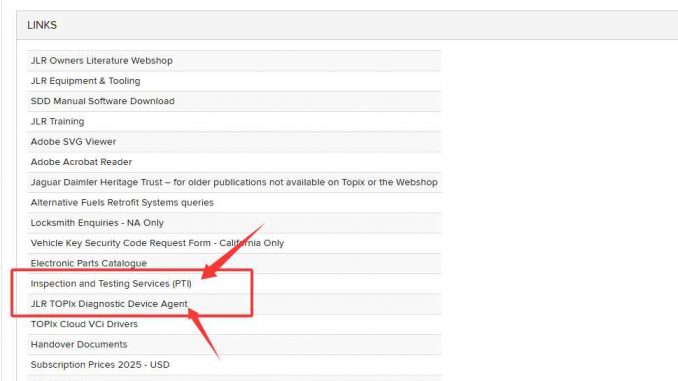
If your Jaguar Land Rover diagnostic software cannot connect properly or shows communication issues, updating the latest TOPIx software and drivers can often solve the problem. This guide explains how to update TOPIx software for the JLR DoIP VCI SDD Pathfinder Interface step by step.
What You Need Before Updating
Before starting the update process, make sure you have:
- A stable internet connection
- Administrator permission on your Windows computer
- Installed JLR DoIP VCI device
- Latest TOPIx software package
- TOPIx Cloud VCI drivers
- Windows patch file (required for some operating systems)
Updating both the TOPIx Diagnostic Device Agent and VCI drivers helps maintain compatibility with newer Jaguar and Land Rover models.
1.Open the following topic software download link:
https://topix.jaguar.jlrext.com/topix/ui/mylinks
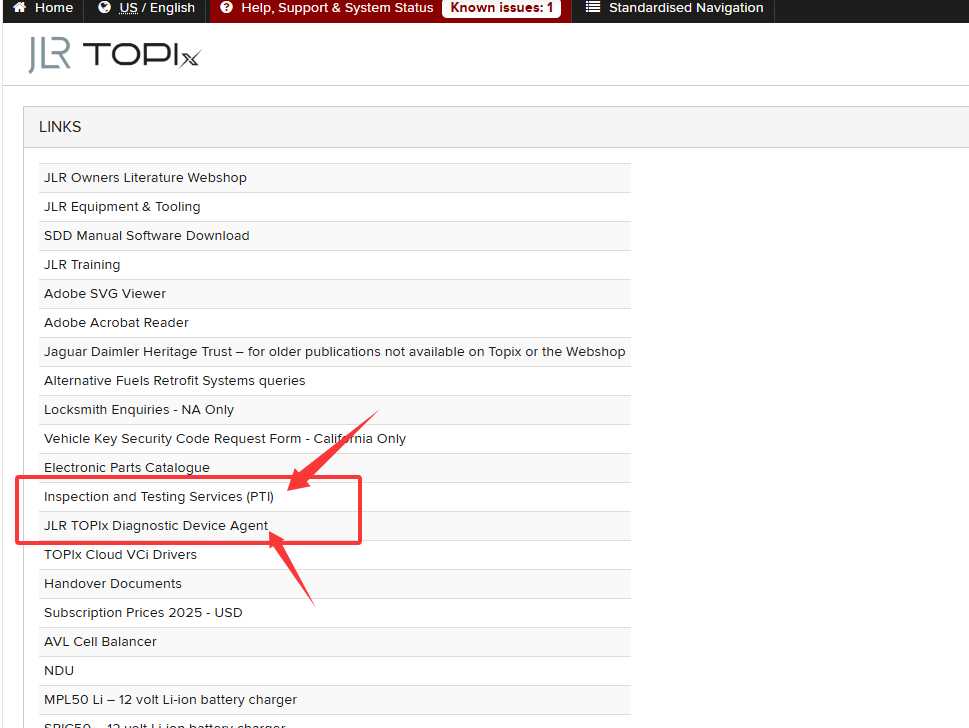
2. Download and install the latest Topix software and JLR driver below
JLR TOPIx Diagnostic Device Agent
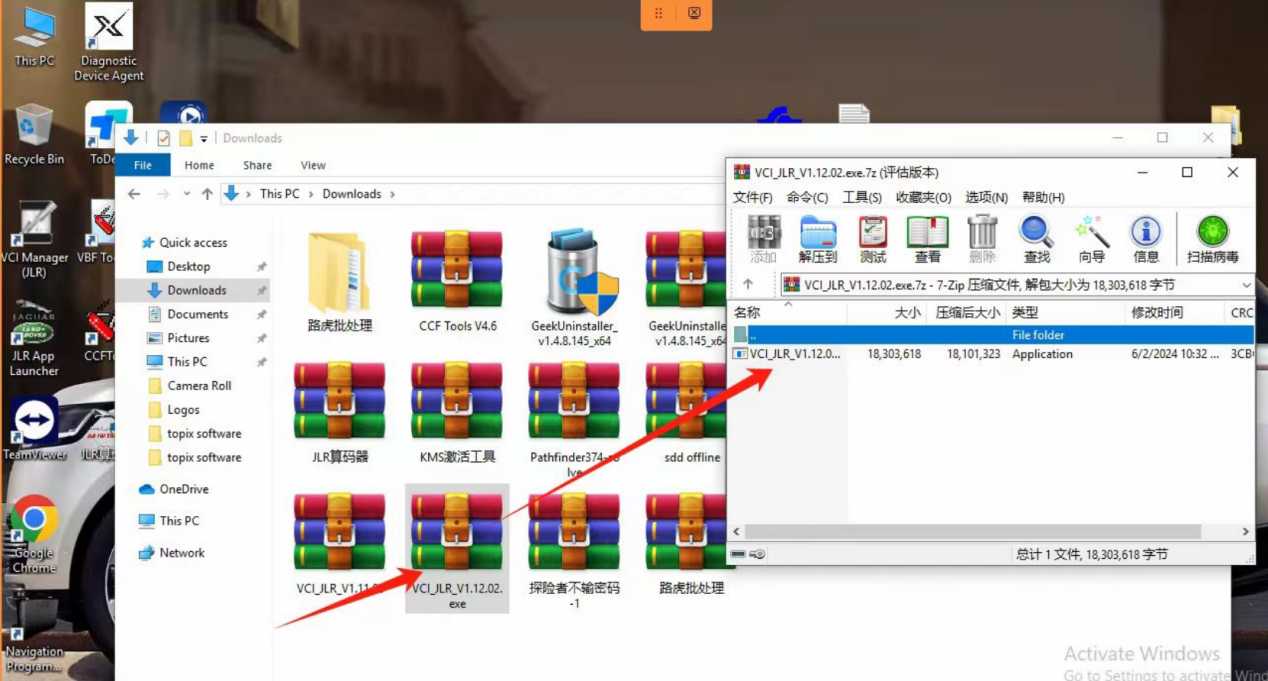
Install and run the below WINDOWS patch file(most operating systems require install below patch file

If you not find the patch file on your computer, please contact our customer service.
For JLR DoIP VCI SDD Pathfinder Interface , please check the link as bellowing :
https://www.obdii.shop/goods-192-JLR-DoiP-VCI-SDD-Pathfinder-Interface.html
More interesting for automotive diagnostic tools , welcome to check https://www.obdii.shop
FAQ
1. Why do I need to update TOPIx software for JLR DoIP VCI?
Updating TOPIx software helps improve compatibility with newer Jaguar and Land Rover vehicles, fixes communication issues, and ensures SDD or Pathfinder works correctly with the VCI interface.
2. Where can I download the latest TOPIx software?
You can download the latest TOPIx software, Diagnostic Device Agent, and Cloud VCI drivers from the official JLR TOPIx portal.
3. What is the TOPIx Diagnostic Device Agent?
The TOPIx Diagnostic Device Agent is the communication software that allows the JLR DoIP VCI interface to connect with SDD and Pathfinder diagnostic applications.
4. Why is my JLR DoIP VCI not detected after installation?
This may happen because the VCI drivers were not installed correctly, Windows blocked the driver installation, or the required patch file is missing.
5. Do I need to install the TOPIx Cloud VCI Drivers?
Yes. The Cloud VCI Drivers are required for proper communication between the JLR DoIP VCI device and the diagnostic software.
6. What should I do if Pathfinder shows a communication error?
Restart the VCI and laptop, reinstall the drivers, and make sure the Windows patch file is installed correctly. Also verify your internet and USB connection.
7. Why do I need the Windows patch file?
Some Windows operating systems require an additional patch file to support TOPIx software and DoIP communication properly.
8. Can antivirus software block the TOPIx installation?
Yes. Antivirus software or Windows firewall may block the installation or communication process. Temporarily disabling them during installation is recommended.
9. How can I confirm the TOPIx update was successful?
After installation, open Pathfinder or SDD software and check whether the JLR DoIP VCI can connect to the vehicle normally without communication errors.
10. Which vehicles are supported by JLR Pathfinder and SDD?
JLR Pathfinder and SDD support many Jaguar and Land Rover models, including newer vehicles using DoIP communication protocols.
Leave a Reply