Is your Mercedes-Benz C6 SDconnect showing “No signal” while XENTRY Diagnosis reports “No valid StartKey available”? Together, these two problems can stop you from establishing any diagnostic connection with the vehicle.
An OBDII Shop customer hit both while diagnosing a 2012 Mercedes-Benz ML 350 CDI. We checked the C6’s indicator lights and the vehicle details, found that the XENTRY software setup needed attention, and solved it through remote assistance. No replacement hardware was needed. This article covers the symptoms, the checks and the result, then a troubleshooting routine you can follow yourself.
The Problem: C6 Shows No Signal and XENTRY Won’t Start
The customer reported two problems.
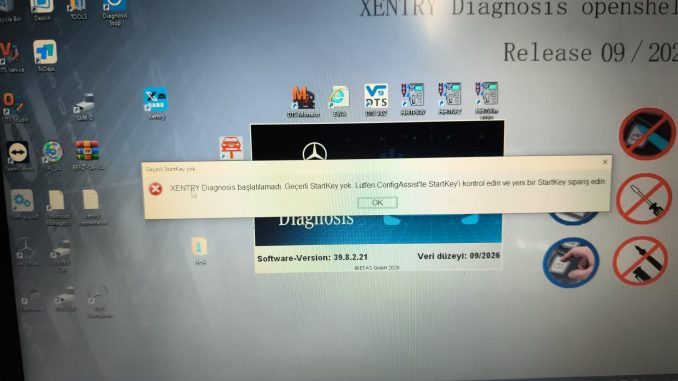
1. XENTRY StartKey error. When launching XENTRY Diagnosis, this message appeared:
“XENTRY Diagnosis could not be started. No valid StartKey available. Please check the StartKey in ConfigAssist and order a new StartKey.”
2. SDconnect Status: No signal. The SDconnect status display showed No signal, so the customer couldn’t establish normal communication with the interface.
| Item | Information |
|---|---|
| Vehicle | Mercedes-Benz ML 350 CDI, 2012 |
| Interface | Mercedes-Benz C6 SDconnect |
| Software | XENTRY Diagnosis |
| Software error | No valid StartKey available |
| Connection status | SDconnect No signal |
XENTRY Diagnosis error message saying no valid StartKey is available
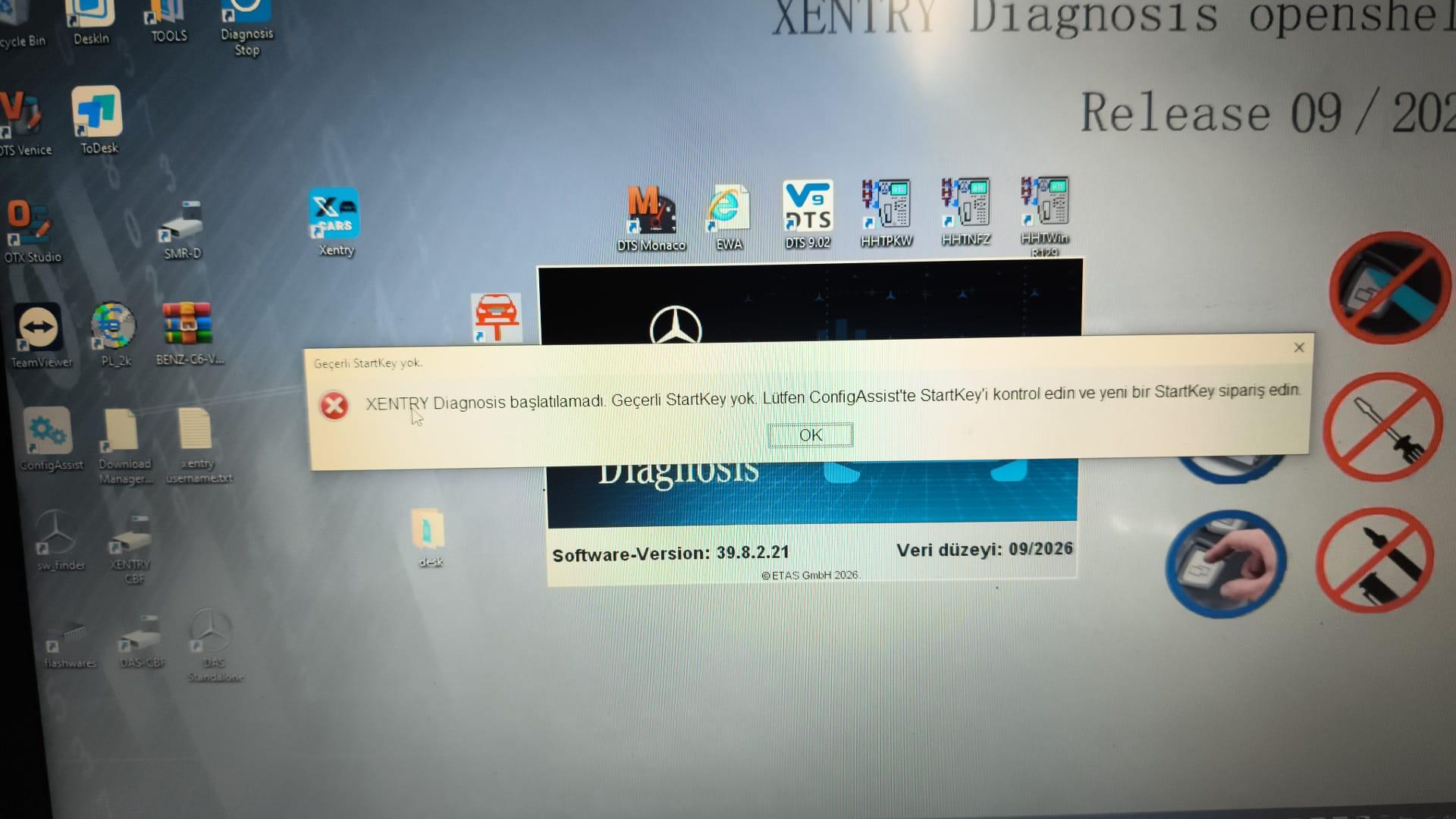
SDconnect Status window showing No signal for the Mercedes-Benz C6 interface
How We Narrowed It Down
Before suggesting a replacement interface, our team needed to know whether the problem was in the hardware connection or the software setup. We asked the customer for:
- Clear photos of the C6’s indicator lights
- The vehicle model and production year
- Screenshots of the XENTRY error message and the SDconnect status
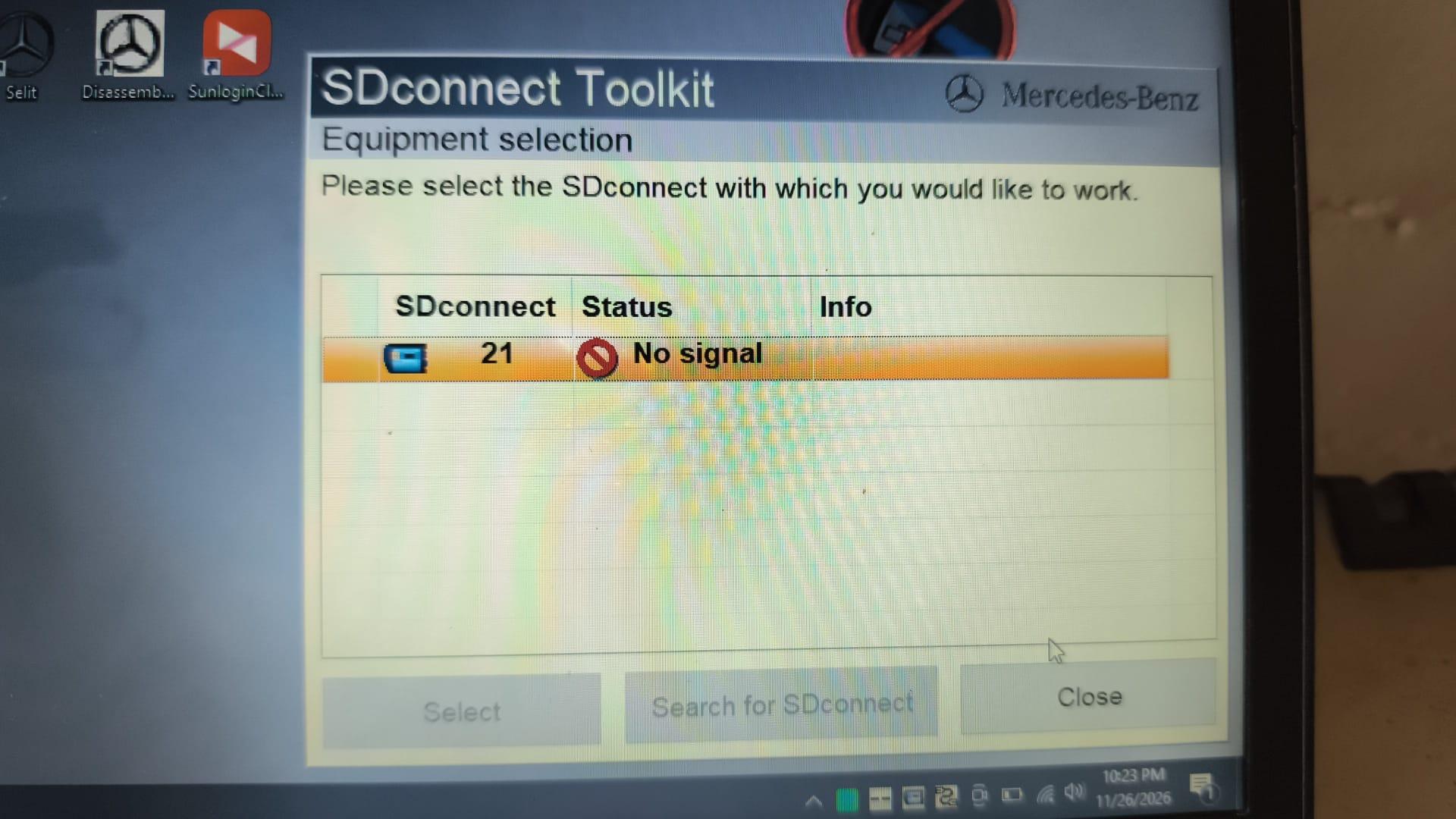
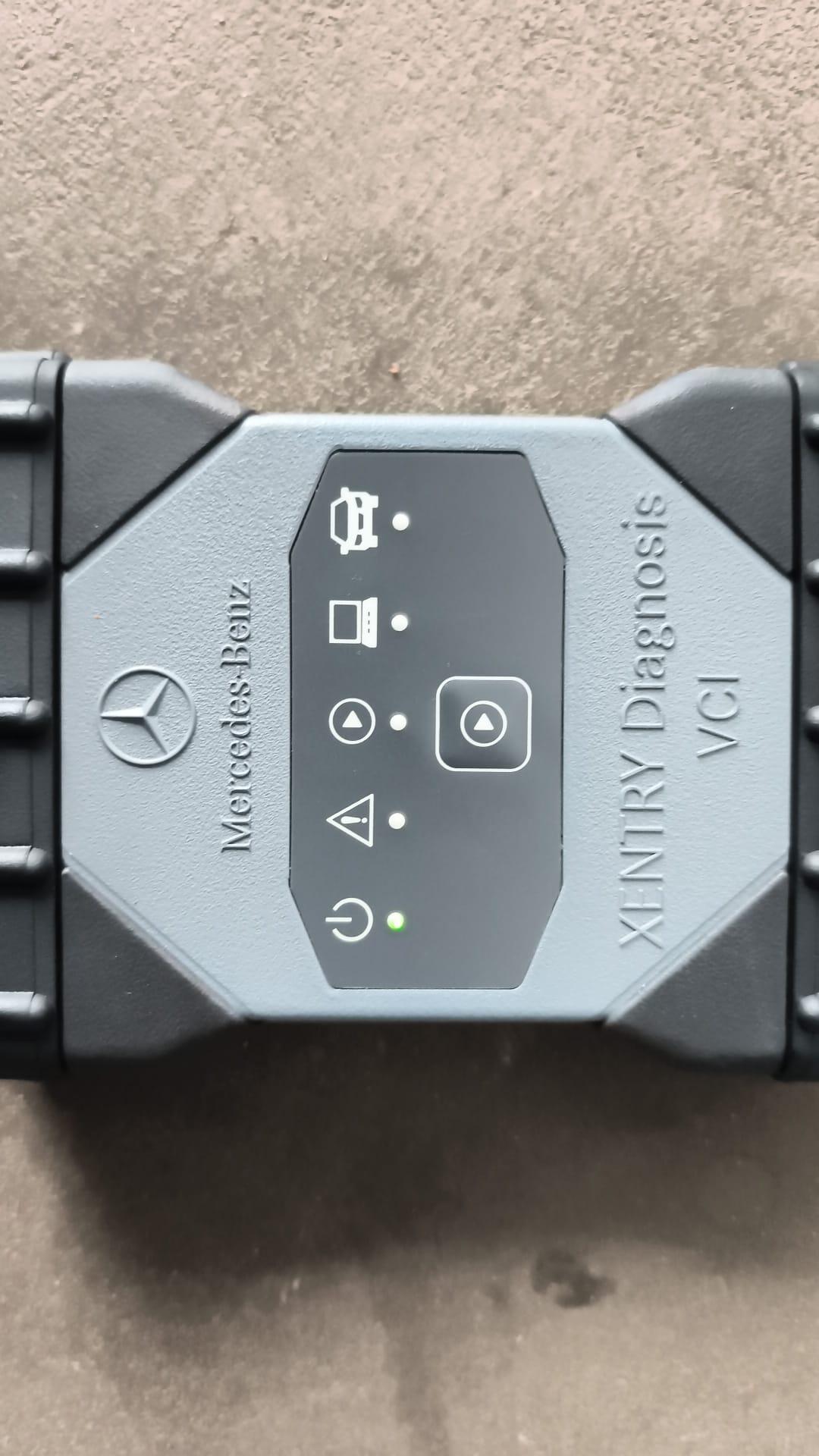
The customer confirmed the 2012 ML 350 CDI and sent the photos. In them, the computer connection indicator was not lit. Combined with the StartKey message, our engineer concluded that the XENTRY software setup needed attention. The unlit indicator also meant the interface and computer connection needed checking.
Mercedes-Benz C6 SDconnect interface with the computer connection indicator light not lit
The Fix: Remote Support
Our engineer arranged remote assistance through TeamViewer with the computer connected to the Internet. After checking the software configuration and completing the work, the customer reopened XENTRY, checked the SDconnect status and tested the connection again.
“OK, works now. Thank you!”
Result: XENTRY started successfully and the customer confirmed normal operation after retesting.
TeamViewer remote session for Mercedes XENTRY software support
A “No signal” message doesn’t automatically mean the C6 is defective. Check the software, the computer connection, the interface status and the vehicle communication separately before buying new hardware.
How to Troubleshoot C6 “No Signal” Yourself
Step 1: Check the C6 hardware connection.
- Confirm the interface is powered
- Inspect the USB or network connection between the computer and the C6
- Check the OBD cable and connectors for damage
- Look at the C6’s indicator lights and note which ones are lit
- Check whether Windows recognizes the interface
If you’ve worked through these checks and the hardware really is damaged, see the C6 interface options at the end of this article.
Step 2: Check the StartKey status. If XENTRY reports no valid StartKey, open ConfigAssist and check the StartKey status, as the message advises. If it’s invalid or missing, contact your software provider. Don’t repeatedly reinstall XENTRY before checking this.
Step 3: Check the SDconnect communication status. If it still shows No signal, confirm the C6 is powered correctly, check the computer-to-interface connection, verify the selected communication interface and network configuration, and test again after correcting anything you find.
Step 4: Test communication with the vehicle. If the computer recognizes the C6 but XENTRY can’t communicate with the car, check the vehicle’s diagnostic socket, the ignition position, the relevant fuses and the battery condition. Also verify that the vehicle identification and diagnostic configuration are correct.
Common C6 Problems at a Glance
| Problem | Possible cause | What to check |
|---|---|---|
| No valid StartKey available | Software activation issue | ConfigAssist |
| SDconnect No signal | Interface or communication configuration | Indicator lights and connection |
| Computer doesn’t recognize the C6 | USB, network or driver problem | Windows device recognition |
| C6 connects to the computer but not the vehicle | Vehicle power, ignition, cable or network | Diagnostic socket, fuses, vehicle communication |
| XENTRY won’t start | Software configuration or activation | Installation and StartKey status |
These symptoms can have different causes, so the exact one depends on your C6, computer, XENTRY version and vehicle.
Need Help With Your C6?
If your C6 shows No signal or XENTRY displays a StartKey error, our technical team can help. To speed things up, send us:
- Your vehicle model and production year
- Photos of the C6 indicator lights
- A screenshot of the XENTRY error message
- A screenshot of the SDconnect status
- Your XENTRY software version
- TeamViewer details, if remote assistance is needed
Remote assistance may be available when the issue relates to software configuration or activation.
Looking for a C6 Interface?
The Mercedes-Benz C6 Xentry Diagnosis VCI DoIP supports CAN and DoIP networks and works with XENTRY, Vediamo and Monaco DTS. It comes in five configurations:
- Hardware only, for customers who already have software
- Hardware with software on a 500GB SSD, which replaces your laptop’s 2.5″ hard drive
- Hardware with one-time remote software installation, for one laptop
- Hardware with a second-hand Lenovo T450 laptop, software installed
- Hardware with a second-hand Panasonic CF54 laptop, software installed
Before ordering:
- The listing says the C6 supports only a limited number of light-duty truck models. If trucks are your main work, it recommends a C4 or C5 instead.
- The software needs Windows 10 64-bit, 8GB RAM and over 300GB free on the C drive.
- With the remote installation option, you choose either car software or car-plus-truck software. They can’t be installed on the same system.
Not sure which configuration fits your workshop? Contact us with your vehicle and laptop details and we’ll help confirm compatibility.
View the Mercedes-Benz C6 Xentry Diagnosis VCI DoIP at OBDII.SHOP
Leave a Reply